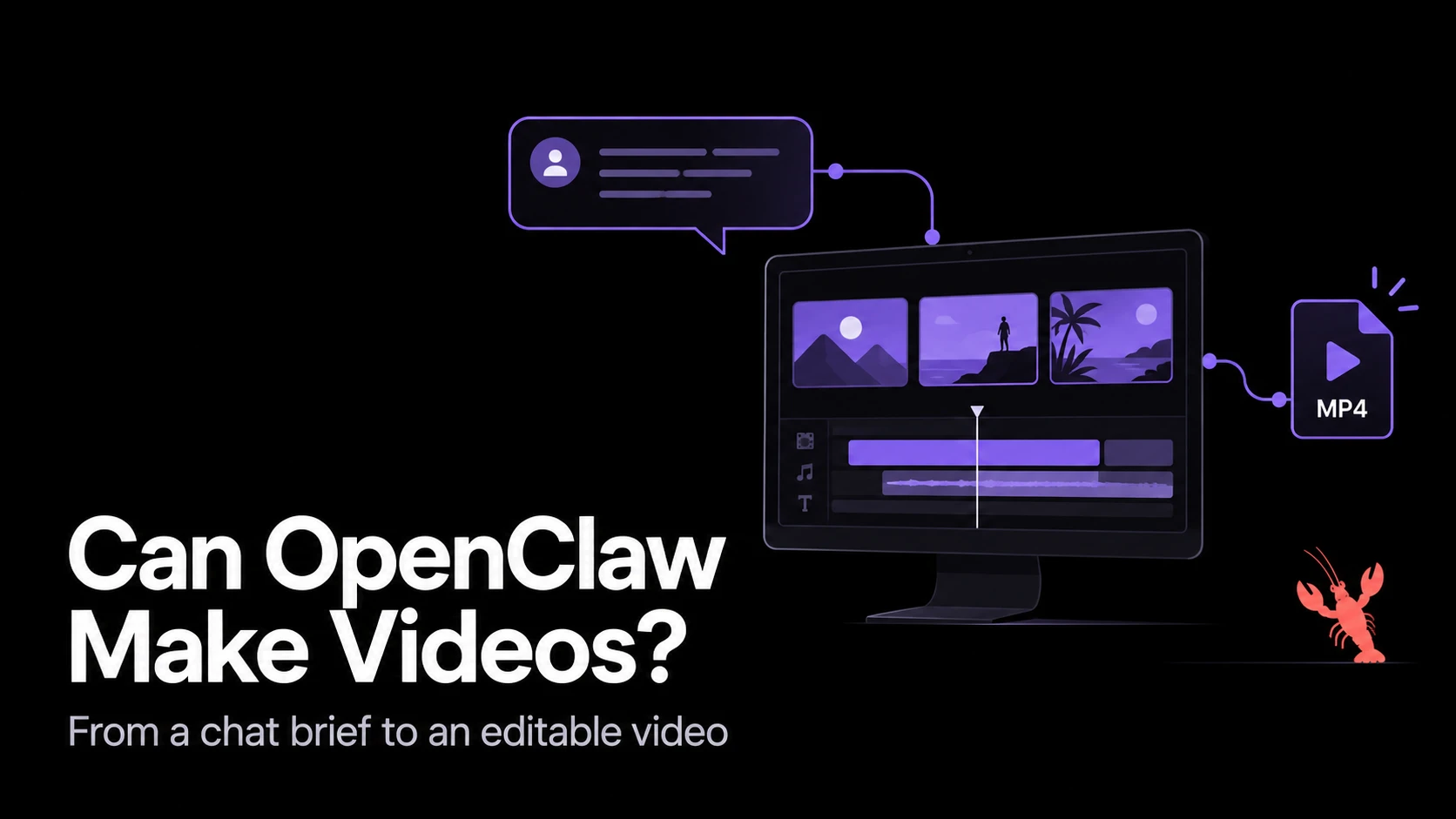
Yes. OpenClaw can coordinate tools that create videos. It can request generated clips from a configured video provider, or ask an agent to build and render an editable project in CoAnimator. The first route produces footage. The second gives you scenes, captions, and timing you can revise.
Choose the route according to what you need to show. A generated shot can illustrate a setting or a mood. It should not substitute for an accurate recording of how your product works. Use real screens for the workflow and add generated footage only where it helps explain the story.
To work directly in the video project rather than through Telegram, see the guides for Codex or Cursor.
This guide follows the documented Telegram-to-CoAnimator setup. It covers production and review; we have not tested the integration end to end.
TL;DR
- For generated footage: connect OpenClaw to a supported video provider. Its model determines clip length, inputs, and cost.
- For an editable product video: give the agent a CoAnimator project, approved assets, the video skill, and working render tools.
- Telegram handles the conversation. The connected computer edits and renders the video; your phone sends instructions and receives previews.
- Review before exporting: approve the scene plan, still frame, and rough cut. Keep the editable project alongside the final MP4.
Choose between generated footage and an editable video
OpenClaw’s video-generation tool connects to configured providers. Availability, inputs, duration, and output options depend on the provider and model. Installing OpenClaw does not itself supply a video-model account or generation credits.
| What you need | Route to consider | What to review |
|---|---|---|
| A short atmospheric shot or imagined setting | A configured video-generation provider | Motion, continuity, unwanted details, and suitability for the scene |
| A product walkthrough using real screenshots | An editable CoAnimator project | Screen accuracy, readable labels, pacing, and the demonstrated result |
| A revised version of an existing launch video | Reopen the project and change the affected scenes | Whether the revision altered anything you had already approved |
| A video assembled from both real screens and generated footage | Generate the supporting clips, then assemble the project | Whether the styles match and the footage supports the explanation |
Decide whether you need a supporting clip or a complete video before choosing tools. The agentic video stack guide explains how generation, project editing, and rendering fit together.
What runs on your phone, and what runs on the host
Telegram is the place you send instructions and receive files. The agent and rendering tools run on a computer with access to your project. Sending a message from your phone does not move that work onto the phone.
CoAnimator’s OpenClaw integration guide describes an external gateway workflow. The agent’s host needs CoAnimator, the coa command, FFmpeg/FFprobe, project access, and the relevant skill. A headless Linux setup also needs the display environment described in the CLI documentation.
Install CoAnimator on the computer that will render the video. Choose the matching Windows, macOS, or Linux build from the CoAnimator download page. In the desktop app, use Settings → Media tools to prepare the required tools.

Before configuring chat, open a small project on that host and export it once. This separates a rendering problem from a messaging problem. Keep the test short: one screenshot, one heading, and a closing frame are enough to establish that the tools can produce a file.

Connect Telegram and give the agent its project
1. Configure OpenClaw and a model
Follow the OpenClaw onboarding guide for your installed version. Choose a model connection, configure its account, and start the gateway. Give the agent a dedicated folder for the video project.
Do not choose a model solely by whether it accepts a long prompt. Test whether it can follow a scene plan, use the correct assets, and make a narrow revision without changing the rest of the project.
2. Connect and pair your Telegram bot
Create a bot through BotFather and configure its token using the Telegram setup guide. The token belongs in the gateway’s configuration or supported secret setup, never in the video brief or a project committed to Git.
Check the channel:
openclaw channels status --probeWith pairing enabled, send the bot a message and approve your own pairing request on the host. A bot that responds with a pairing request is waiting for access approval, not failing to understand the video task. Follow the current channel guide if your gateway uses a different access policy.
3. Install the CoAnimator skill where this agent can read it
Download the skill from CoAnimator’s skills page. For an OpenClaw agent using workspace skills, place it at:
<workspace>/skills/coa-cli/SKILL.mdOpenClaw’s skill documentation explains workspace and shared locations. If you use a separate coding-agent runtime, check that runtime’s skill location too.
Before editing, ask the agent to identify the project folder, the skill file it loaded, and the render command. You still need to install the renderer and give the agent permission to run it.
4. Confirm the render command is available
On the rendering host, run these checks. In Windows PowerShell, use coa.cmd --help for the first command:
coa --help
ffmpeg -version
ffprobe -version
The CoAnimator CLI reference documents installation and export options. Once your test project exists, a basic export is:
coa render /path/to/your/project --out /path/to/preview.mp4The example above uses macOS/Linux paths. In Windows PowerShell, use:
coa.cmd render "C:\Videos\MyProject" --out "C:\Videos\preview.mp4"Replace both paths with locations on the rendering host. A path from your laptop will not work on another machine unless that project is also available there. For a sandboxed agent, check the paths and tools visible inside its execution environment.
The demo below shows a Telegram conversation with the OpenClaw agent as it plans a product intro and starts building it in CoAnimator. Use it to see how the chat workflow fits together after setup.
Brief one short video before asking for a full campaign
For a first project, choose one useful action: creating a report, approving a design, or finding an answer. Show the starting problem, the action, and the result. A list of every feature makes it harder to tell what the viewer should remember.
Send a brief like this, with paths that exist on the host:
Make a 30-second product walkthrough for first-time visitors. Use the approved screenshots in the project’s assets folder. Show one workflow: open the project, make the change, then show the result. Use our existing colors and typeface. Keep each screen readable on a phone. First return a scene plan with timing and required assets. Wait for my review before building or purchasing generated footage.
Review three decisions in the scene plan before production:
- Story: Can someone unfamiliar with the product explain the benefit after watching?
- Visual direction: Do the screenshots, typography, spacing, and any generated clips belong in the same video?
- Timing: Does each scene leave enough time to read its main point?
Include two or three references and explain what you want from each: a restrained transition, a readable screen crop, or a particular rhythm. Do not ask the agent to copy an entire reference video. Use the moodboard process in the launch-video guide to turn those references into specific choices about type, color, and movement.
Build a rough cut with the approved assets first. Add music and supporting footage after the sequence makes sense without them. If a scene needs a generated clip, specify its purpose, framing, motion, and duration; review that clip before assembling it into the edit.
Send an asset list and approve the scene timing
When you send feedback through chat, name the exact file you want the agent to use. Give each file a descriptive name and identify its job: opening screen, action recording, result screen, logo, or audio. Ask the agent to confirm that it can read the files on the rendering host before building.
For a 30-second walkthrough, use a scene plan like this:
| Time | Material | Review checkpoint |
|---|---|---|
| 0–5 seconds | The starting product state and one sentence of context | Does the viewer understand the task? |
| 5–18 seconds | A recording of the main action | Are the controls visible and the action accurate? |
| 18–25 seconds | The resulting state | Is the benefit demonstrated on screen? |
| 25–30 seconds | A short next step | Does the viewer know what to do? |
Adapt the timing to the real interaction. If the recording is longer, remove dead time before shortening the parts someone needs to understand.
Send the moodboard with written notes, not just reference links. Ask for one still frame that establishes the type, crop, and color treatment. Approve that frame before animation. For motion, specify which element leads attention and which elements stay still. This gives the agent a clear standard for later scenes.
For audio, attach a licensed track or identify a configured provider and the intended use. Specify whether narration or music leads the edit. Ask for a short audio sample before producing the full voiceover, and check names and product terminology. Keep provider generation separate from assembling the final project so an unsuitable clip or track can be replaced without rebuilding every scene.

Review the export, then request a narrow revision
A render can finish without producing the edit you wanted. Watch the MP4 from beginning to end. Check the actual screen labels, text size, pauses, audio level, and final call to action. Review once with sound off to see whether the product story still makes sense.
Send feedback that names the scene, the problem, and the intended change:
In scene two, the settings label is too small to read. Crop closer to that panel and hold the result for one extra second. Keep the wording, colors, and all other scenes unchanged. Return a new preview for review.
Review the story first, then layout, motion, and sound. Request one type of change per pass and compare the affected scene with the previous preview.
Stop when the video communicates the intended action, shows the product accurately, remains readable at its viewing size, and has no distracting motion or audio defects. More transitions rarely fix an unclear explanation.
OpenClaw’s execution approvals depend on its configured policy. Do not assume every command will prompt you. Set suitable limits for the project and require an explicit decision before paid generation or public posting. Keep public posting outside the preview request.
Return the MP4 and keep the editable project
Ask for the exported file, the saved project location, and a short account of the changes. Keep the project and its assets together. The product-video update guide explains how to revise changed screens while keeping the rest of the edit.
The CoAnimator chat workflow can return a rendered file through the connected channel. Actual delivery depends on the channel’s attachment limits and the agent’s access to the export. If the file is too large, request a smaller review copy or use an approved file-sharing destination. Rendering and publishing are separate steps.
Troubleshooting the first video
| Problem | What to check first |
|---|---|
| The bot replies, but cannot edit the project | Confirm the active agent’s workspace and its access to the project folder. |
The agent cannot find coa | Check installation and PATH in the environment that executes the command, not only your terminal. |
| A render works locally but fails on the host | Check asset paths, FFmpeg/FFprobe, fonts, and the host’s display requirements. |
| Video generation is unavailable | Check whether a supported provider and video model are configured for the video-generation tool. |
| The MP4 exists but never arrives in chat | Check its size, the channel’s delivery limits, and whether the agent can read that file. |
Frequently asked questions
Can OpenClaw make a video from a text prompt?
Yes, with a configured video-generation provider. The supported clip length, reference inputs, and output settings depend on that provider. For a complete product walkthrough with accurate screens and editable timing, use a project-based workflow instead of expecting one generated clip to contain the whole demonstration.
Can I create videos from Telegram on my phone?
You can send briefs, review responses, and request revisions from Telegram. The connected host runs the agent and video tools. It needs to remain available and have access to the project while the work runs.
Is making videos with OpenClaw free?
The total depends on the services you use. Model use, generated footage, hosting, and your editor’s export plan may have separate costs. Check those accounts before starting a batch. CoAnimator’s export resolution and watermark rules depend on its license; check the current CLI documentation before choosing final delivery settings.
Can OpenClaw update an existing product video?
An editable project is the best starting point. Provide the project, replacement assets, and the scenes to change. If you only have a finished MP4, its text and screen elements are not automatically available as separate editable layers.
Does OpenClaw automatically publish the finished video?
OpenClaw needs access to a publishing service before it can post a video. Review the final export, then give a separate instruction to publish it. This guide stops at the MP4 and editable project.