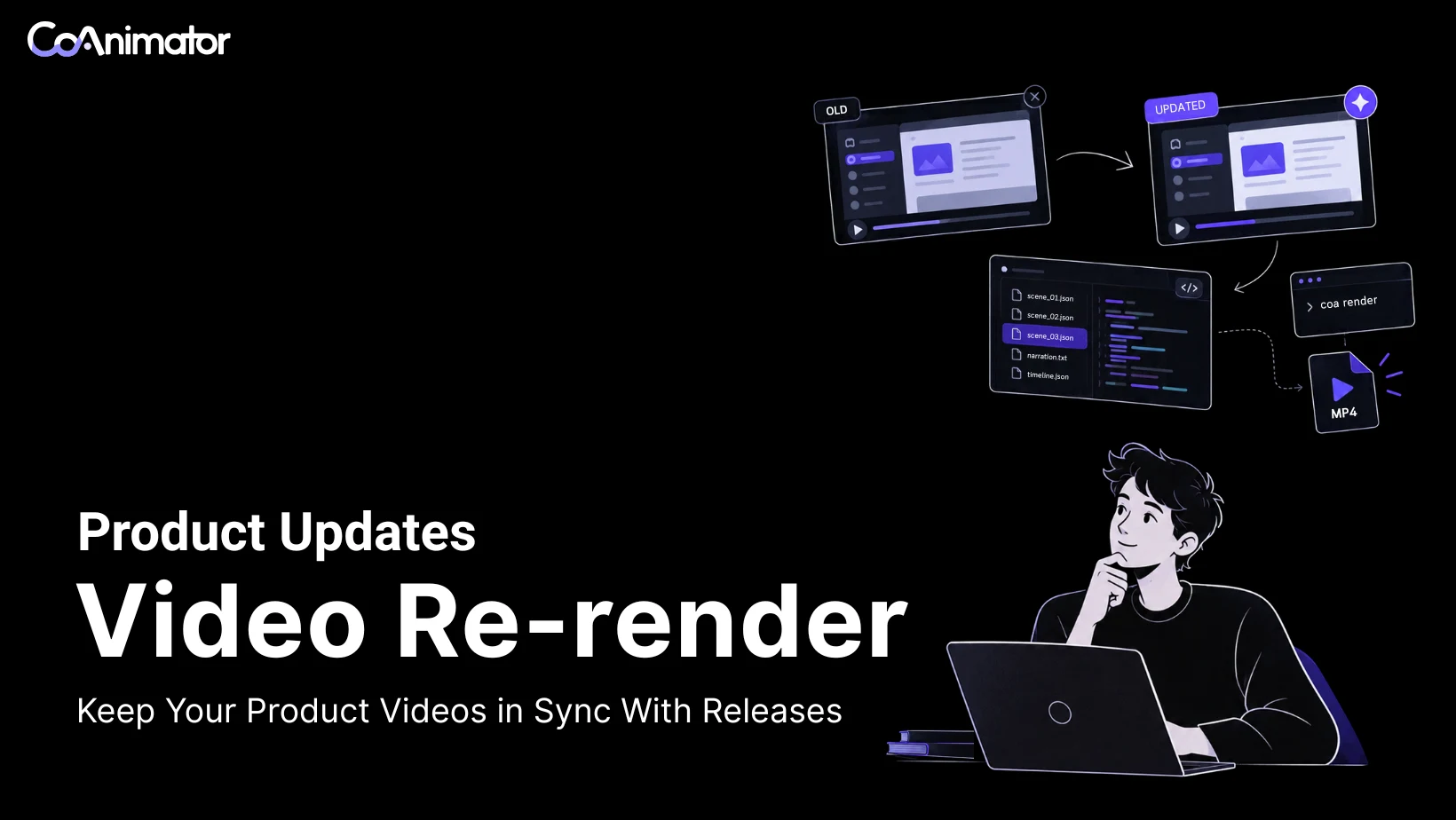
Your product’s Export button has moved. The demo still points to the old corner, and the voiceover tells viewers to click a label that no longer exists. The rest of the video is accurate. You need to fix that moment without rebuilding the introduction, transitions, and closing scene.
In CoAnimator, you can return to the editable project, give the agent the updated screen and a focused revision request, then review and export a new video. Before exporting, check that the screen, instructions, and timing all describe the product people can use today.
First, decide what actually needs updating
Watch the existing video beside the current product. Note the timestamp of each mismatch and what a viewer would do differently now. A cosmetic change and a changed workflow need different edits.
| What changed in the product | What to update in the video | What to check afterward |
|---|---|---|
| A button label or location | The screen, pointer or highlight, and any instruction naming it | The viewer can find the exact control shown |
| A dashboard redesign | The screenshot, recording, or animated interface in that scene | Cropping, zooms, and overlays still frame the right details |
| A step was added or removed | The affected sequence and its explanation | The video follows the new order without skipping a prerequisite |
| Pricing or a feature limit | Every visible and spoken mention of that detail | The closing card and captions agree with the current offer |
| Branding changed | The affected logo, colors, typography, and title cards | The same treatment carries through the whole cut |
A label change might fit the existing timing. A new setup step might need several extra seconds. Preserve the duration where it still works, but leave enough time for someone to follow the new action.
1. Open the editable CoAnimator project
Start with the project that produced the current video. CoAnimator keeps the animation, timeline, and narration in editable project files; an exported MP4 is the finished output. You can reopen a project or import a .coa package. The project guide covers the available import options.
Before revising, duplicate the project or keep a versioned backup. Use a clear name such as “Product demo · October update,” and keep the previous approved MP4 for comparison. If your team already versions project files in Git, use that existing workflow.
Then find the scene that needs attention. In the example below, imagine a 40-second demo with a Reports scene from 12 to 20 seconds. The product now calls its export action “Download CSV” and places it at the top right. Those details are illustrative; substitute your own scene, timestamps, and interface.

2. Bring in the current screen or recording
Choose the replacement based on how the original scene was made:
- Screenshot scene: provide a current capture with the right account state, sample data, and open panel.
- Screen-recorded scene: record the changed action, including a short pause before and after the click so the edit has room to breathe.
- Animated interface: provide a current screenshot as the reference and describe which parts of the illustrated interface need to change.
Match the original capture’s window size and zoom where practical. Otherwise, a simple asset replacement can leave a highlight pointing into empty space or make the new screen look softer than the surrounding scenes.
Drag the replacement media into CoAnimator’s media panel. For a new desktop recording, capture it with a separate screen-recording tool first; the current editing documentation specifies that CoAnimator 0.7.2 does not include a desktop screen recorder.
Do not ask the agent to guess what the new interface looks like from release notes alone. Give it the actual screen and identify the action the viewer needs to understand.
3. Ask for a focused revision
A useful update request identifies the scene, supplies the new source, states the exact correction, and names what should stay. Here is a prompt for the fictional Reports example:
Update only the Reports scene at 00:12–00:20 in this project. Use the new Reports screenshot I’ve added to the media panel.
The old “Export” button at the bottom left is now “Download CSV” at the top right. Replace the outdated screen and move the highlight to the new button. Change the spoken instruction and caption to: “Choose Download CSV to save your report.”
Keep the introduction, other scenes, music, fonts, colors, and closing CTA unchanged. Keep this scene within its current timing if the new line fits naturally. If it needs more time, explain the proposed timing change before applying it.
Show me the revised scene for review before exporting the full video.
This gives the agent a concrete edit to make and a boundary to respect. It is still a revision request, not a guarantee that every untouched detail will remain identical. Compare the result with your approved cut.
If the first revision is close, point to the remaining issue rather than rewriting the whole brief: “The highlight still lands before the button appears; delay it until the screen is visible.” For more examples of useful direction, see our guide to briefing a product video.
4. Review the screen, callout, and voice together

Play the revised scene from a few seconds before the change to a few seconds after it. A correct screenshot can still make a confusing tutorial if the pointer arrives too early or the narrator names the old button.
For the Reports example, check three things together:
- The screen: “Download CSV” appears in the correct position and is readable at the size viewers will watch.
- The callout: the highlight points to that button, appears when it is needed, and does not hide the label.
- The voice and captions: both use the new instruction, and the scene holds long enough to follow it.
If the narration changed, listen for a shift in voice, pace, or volume at the edit. CoAnimator’s tutorial workflow supports revising narration and script-based captions, but you should still check the new audio against the scene. A longer sentence can require a longer hold or a shorter rewrite.
To make feedback precise, pause the stage and use Copy frame, Copy timestamp, or Annotation capture to point out the mismatch in the agent chat. These tools are described in the visual feedback guide.
Once the changed moment works, watch the entire video. Check the transitions into and out of it, and listen for any later sentence that refers back to the old workflow. If the project has a shorter cut or a separate timeline, review that version too.
5. Export a review cut, then the full video
Open Export in CoAnimator. For a quick review, use an In–Out selection or a custom range around the revised scene. Include its neighboring transition so you can judge how it fits. When that looks right, switch back to Full timeline for the final export.
Keep the original aspect ratio and frame rate unless the destination has changed. Choose the resolution your publishing channel needs, and treat compression quality as a separate choice. CoAnimator exports MP4 locally; free exports use 720p with a watermark, while a valid paid license unlocks higher resolutions and removes the watermark. See the export settings guide.
Save the new file under a distinct name, such as product-demo-2026-10-reviewed.mp4. Open that MP4 outside the editor and watch it once. This catches mistakes such as exporting only the review range, choosing the wrong timeline, or leaving a missing audio track unnoticed.
Optional: re-render with the CoAnimator CLI
If your team already uses the terminal, you can render the reviewed project with the coa command:
coa render product-demo.coa --out product-demo-updated.mp4Replace product-demo.coa with your package path. Install the command from Settings → General → Command line & agent skill first; rendering also requires FFmpeg and FFprobe. The CLI reference covers setup and export options.
The command renders the project as it stands. It does not find product changes, replace old footage, or approve the result for you.
Keep the next update easy to find
Save the revised project alongside a short note: which product release it matches, which scene changed, and where the video is published. Keep the replacement media with the project. If another person takes over, they should be able to find the editable source without tracing a final MP4 back through chat messages.
Give scenes useful names, such as “Create a workspace,” “Export a report,” and “Invite a teammate.” When one of those flows changes, the next revision starts with a named scene and a current capture.
For a release that introduces a new feature rather than correcting an existing walkthrough, our release-notes video guide covers building a separate announcement. Keep a maintenance edit focused on helping viewers use the current product.
Frequently asked questions
Can I update the video if I only have the MP4?
You can bring the MP4 into a new project and edit it as footage, but it does not retain the original editable text, animation, or narration layers. For a targeted source-level change, recover the original CoAnimator project or .coa package. Without it, you may need replacement footage or a rebuilt section.
Do I need to record the whole demo again?
Usually, you can capture just the changed action if the rest of the walkthrough remains accurate. Record more when the new flow changes earlier steps or the outcome. A new export alone cannot turn a recording of the old interface into the new one.
Do I need to use code or the terminal?
You can direct revisions through the agent in CoAnimator, review them on the stage, and export from the app. The CLI is optional. What matters is having the editable project, accurate replacement material, and a clear request.
Start with the first outdated scene in your current demo. Supply the new screen, specify the correction, and review how it fits the full video. Open CoAnimator to make the update and keep the revised project ready for the next release.