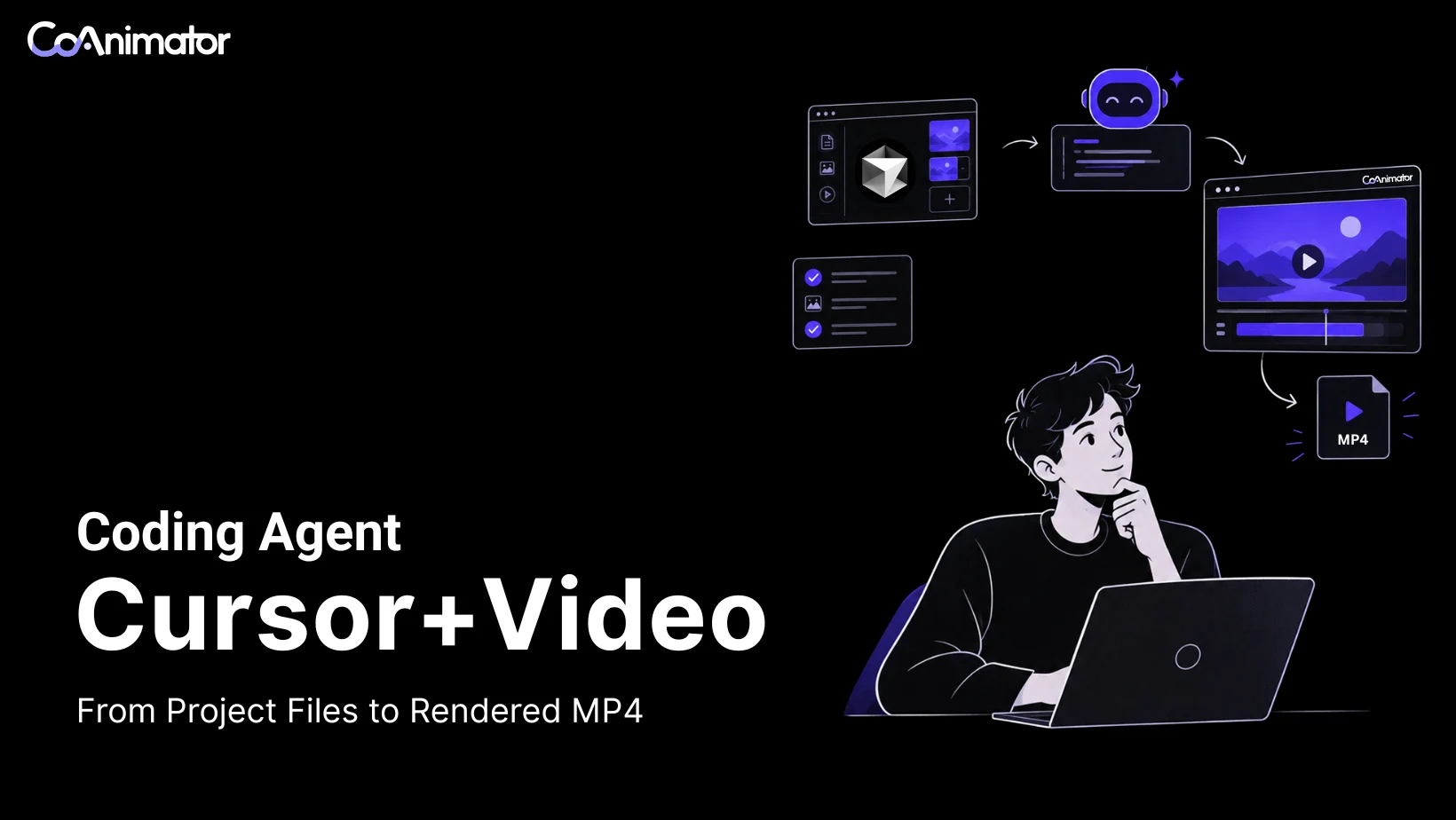
Yes. Cursor can create a video by editing a project and running external video tools. With CoAnimator, Cursor works in the project folder while the studio previews the scenes and exports the MP4.
Keeping the brief, assets, and project together makes later edits easier. When the product changes, you can ask Cursor to update the affected scene without rebuilding the video. This guide uses the external-editor workflow. An optional ACP connection is covered later, with its compatibility limits.
If you want an agent inside CoAnimator, see the Codex setup or Claude Code workflow. For a chat-based workflow, see OpenClaw with Telegram.
TL;DR
- Cursor works in the video project folder. CoAnimator previews the scenes and renders the MP4.
- Prepare the tools first: install CoAnimator, its
coacommand, FFmpeg/FFprobe, and the project skill. - Plan before editing: supply real product assets, approve a scene plan and visual reference, then build a rough cut.
- ACP is optional. The main workflow uses files and commands; the custom connection needs separate compatibility testing.
What you need before starting
Prepare Cursor, a CoAnimator project, the coa command, and FFmpeg/FFprobe for encoding. You also need the CoAnimator skill so Cursor can read the project conventions. A skill is guidance; it does not install the renderer.
For the first video, gather a logo, approved colors and fonts, and screenshots or recordings of one working feature. Keep the video project separate from your application repository if it does not need access to the application code.
Connect Cursor to the video project
1. Create and open the project folder
Install the build for your operating system from the CoAnimator download page. Use Settings → Media tools to prepare FFmpeg and FFprobe.
Start a blank project or template using the CoAnimator quickstart, then open that folder in Cursor. Keep CoAnimator open while editing so you can inspect the preview.
Use a local Cursor session for this walkthrough. A cloud agent or remote terminal needs its own renderer, dependencies, and copy of the assets. Installing CoAnimator on your laptop does not install it in that remote environment.
2. Install the render command and skill
In CoAnimator, use Settings → General → Command line & agent skill to install the coa command. Download the CoAnimator skill and put it in Cursor’s supported project skill directory:
.cursor/skills/coa-cli/SKILL.mdCursor’s skills documentation explains discovery and manual invocation. Start a new session and ask Cursor to read the skill and its referenced project documentation before editing.
Check the tools from the terminal Cursor will use:
coa --help
ffmpeg -version
ffprobe -version
On Windows PowerShell, use coa.cmd --help. Open a new terminal after installation so it picks up the command location.
If a command is missing, fix installation or PATH before drafting the video. The CoAnimator CLI reference covers render setup and platform requirements.
3. Give Cursor a small, concrete brief
Before Cursor edits the project, ask for a scene plan. Include the audience, one benefit, target length, aspect ratio, asset filenames, and what the viewer should do next. The product-video briefing guide offers examples you can adapt for Cursor.

Plan a 25-second feature demo for existing users. Use the approved recording in the assets folder to show how a saved filter reduces repeated setup. Show the starting list, the filter being saved, and the next visit with the filter applied. Return scene timings and asset choices before editing the project.
Use a workflow your product actually supports. Replace the example feature and asset description before sending the brief.
Choose a visual style before asking Cursor to animate
Create a small moodboard with a product screenshot, a typography reference, and a motion reference. Annotate what matters in each. For example, borrow a reference’s spacious text layout or steady camera movement without copying its branding.
Turn those observations into instructions Cursor can follow:
| Decision | Useful direction |
|---|---|
| Type | Use the approved font; one heading and one short supporting line per scene. |
| Color | Use the brand accent to identify the active control, with neutral surroundings. |
| Screens | Crop to the task while retaining enough context to locate the control. |
| Motion | Move one focal element at a time and pause before the next action. |
| Transitions | Reuse one restrained transition unless the story needs a clear change of context. |
Keep persistent rules in the project’s instructions and reference them in the brief. Explain which decisions each reference supports. The Product Hunt launch-video guide covers how to turn references into a consistent visual direction.
Build a rough cut before polishing the motion
For the saved-filter example, a simple 25-second plan might be:
| Time | Scene | What the viewer learns |
|---|---|---|
| 0–4 seconds | The list before filtering | Which repeated task the feature addresses |
| 4–13 seconds | Apply and save the filter | Where to act and what to select |
| 13–21 seconds | Return and reuse it | What changes on the next visit |
| 21–25 seconds | Hold the result and next step | How to try the feature |
These timings are a starting point, not a rule. If the action needs more explanation, cut supporting text or lengthen the scene. Do not speed up the interface until it becomes unreadable.
Ask Cursor to build the sequence with simple cuts and placeholders for optional audio. Review the product states and captions first. Add movement only where it helps someone follow the action: a cursor approaching a control, a crop moving to the result, or a label entering after a panel opens.
Add audio and supporting footage only where needed
Use real product recordings to demonstrate behavior. Generated footage can establish a setting, but it should not replace the screen that proves the feature works. If a scene already communicates its point, leave it alone.
Choose a licensed music track after the rough cut. Check that its rhythm fits the scene changes and that it leaves room for narration. For provider-generated assets, CoAnimator’s plugins document options including ElevenLabs audio and Grok Imagine. Setup, account charges, and supported agent actions vary; confirm the connection before including it in the production plan.
Revise a scene without changing the whole video
Save the rough cut before requesting polish. Give Cursor feedback that names the problem and its location:
In the filter-saving scene, enlarge the active panel and remove the secondary caption. Keep the cursor visible until the menu closes. Preserve the other scenes and render a new preview.
Review in this order: story, screen readability, movement, then audio. Keep one focal point per scene. When several things move together, the viewer has to decide which one matters.
After each pass, compare the new export with the previous one. Check that the video shows the feature accurately, gives viewers time to follow the action, and keeps text readable at the size they will watch it. Repeatedly asking for more polish without naming a defect can make an approved edit worse.
Render and troubleshoot the MP4
On macOS or Linux, replace the example with the project’s actual folder path:
coa render /path/to/your/project --out /path/to/preview.mp4On Windows PowerShell, use the Windows launcher and a Windows path:
coa.cmd render "C:\Videos\MyProject" --out "C:\Videos\preview.mp4"Play the file outside CoAnimator and inspect its beginning, scene transitions, audio, and ending. Keep the editable project and its media together. When a screen changes, follow the workflow for updating a product video to replace the affected scenes and check the new export.
| If this happens | Check this first |
|---|---|
Cursor cannot find coa | Open a fresh terminal after installation and check PATH. |
| Edits do not appear in the preview | Confirm that Cursor and CoAnimator have opened the same project folder. |
| The scene contains missing media | Check the asset path and whether the file is present in the project. |
| A render command waits for approval | Review the request in the active Cursor session. Do not assume an approval setting from another environment applies. |
| The preview looks right but the MP4 does not | Check export dimensions, font and asset availability, and the renderer’s error output. |
Optional: connect Cursor through ACP
Cursor’s CLI supports ACP, started with agent acp. ACP lets a client communicate with an agent over a standard protocol. CoAnimator documents custom agents in its agent guide.
Both apps supporting ACP does not guarantee that they handle every request the same way. Cursor also documents blocking extension requests that a custom client must answer. Test authentication, permission prompts, a disposable scene edit, and a render before relying on a custom connection. We have not tested this connection end to end.
The external-editor workflow above works through project files and commands and does not require this connection.
Frequently asked questions
Can Cursor generate a video from a text prompt?
Cursor can use a prompt to edit a video project and run a renderer. The video tools provide the actual output. Give it a brief, assets, and project-format guidance before asking for a complete demo.
Can I use Cursor with Remotion instead?
Yes. Remotion provides agent skills for Cursor for a React-based video workflow. Choose according to the project you want to maintain: React compositions or a CoAnimator project with a studio preview. Test a representative scene before committing to either workflow.
Do I need to write code to make a video with Cursor?
You can direct the agent in plain language, but this is a file-based workflow. You need to open the correct project, install its tools, and review edits. Basic familiarity with project folders and terminal errors is useful.
Can Cursor edit an existing MP4?
It needs an editing tool that can perform the requested operation. A finished MP4 does not contain separately editable source text and interface layers. Keep the original project if you expect to replace captions, update screens, or change timing later.
Can I create both landscape and vertical versions?
Yes, with a project and renderer that support the intended dimensions. Ask for a separate layout pass: reframe the screen, shorten captions, and check that important controls remain visible. Resizing the canvas alone is not enough.
Is this workflow free?
Cursor access, CoAnimator’s export license, and optional media providers have separate terms. Check your intended resolution, watermark requirements, and account usage before exporting a batch. Start with one short preview. If you are comparing this approach with a freelancer or agency, the product demo cost guide explains which expenses to include.