PowerPoint export
File → Export → Create a Video
- Effort
- One click
- What comes out
- Slides as timed stills
- Next quarter
- Re-export the whole deck
PowerPoint already exports video, and the result still looks like slides. Your agent reads the PPTX, keeps the content, and rebuilds it as an animated video with motion, narration and scenes.
macOS · Windows · Linux · no credits, no render limits
three honest routes
Two of these are faster than us and one of them is free. The question is whether a slide-shaped video is the thing you actually needed.
File → Export → Create a Video
Upload the deck, download an MP4
The agent reads the XML and authors scenes
The first two are conversions: the slide is the unit, and the video inherits its shape. The rebuild throws away the shape and keeps the argument.
the deck is source material
A deck asks the reader to hold six bullets at once because they are all on screen together. A video can only show one thing at a time, which is a constraint that makes the argument better: each point gets its own moment, in the order you meant them to land, with a voice carrying the reader between them.
what changes
Carried over
Deliberately lost
Because nothing is baked into a frame, next quarter's numbers are a re-render rather than a redo. That is the difference a converter cannot offer: its output is pixels, and pixels cannot be asked to update themselves.
how it's built
A deck is a zip of readable XML. No import button, no upload, no converter.
A talk, a sales follow-up, an onboarding module. The same deck becomes a different video.
Headings become titles, bullets become timed beats, tables become animated figures.
The voiceover drafts from your slides, and the animation times to the voice.
New figures, updated chart data, render again. Everything else carries over.
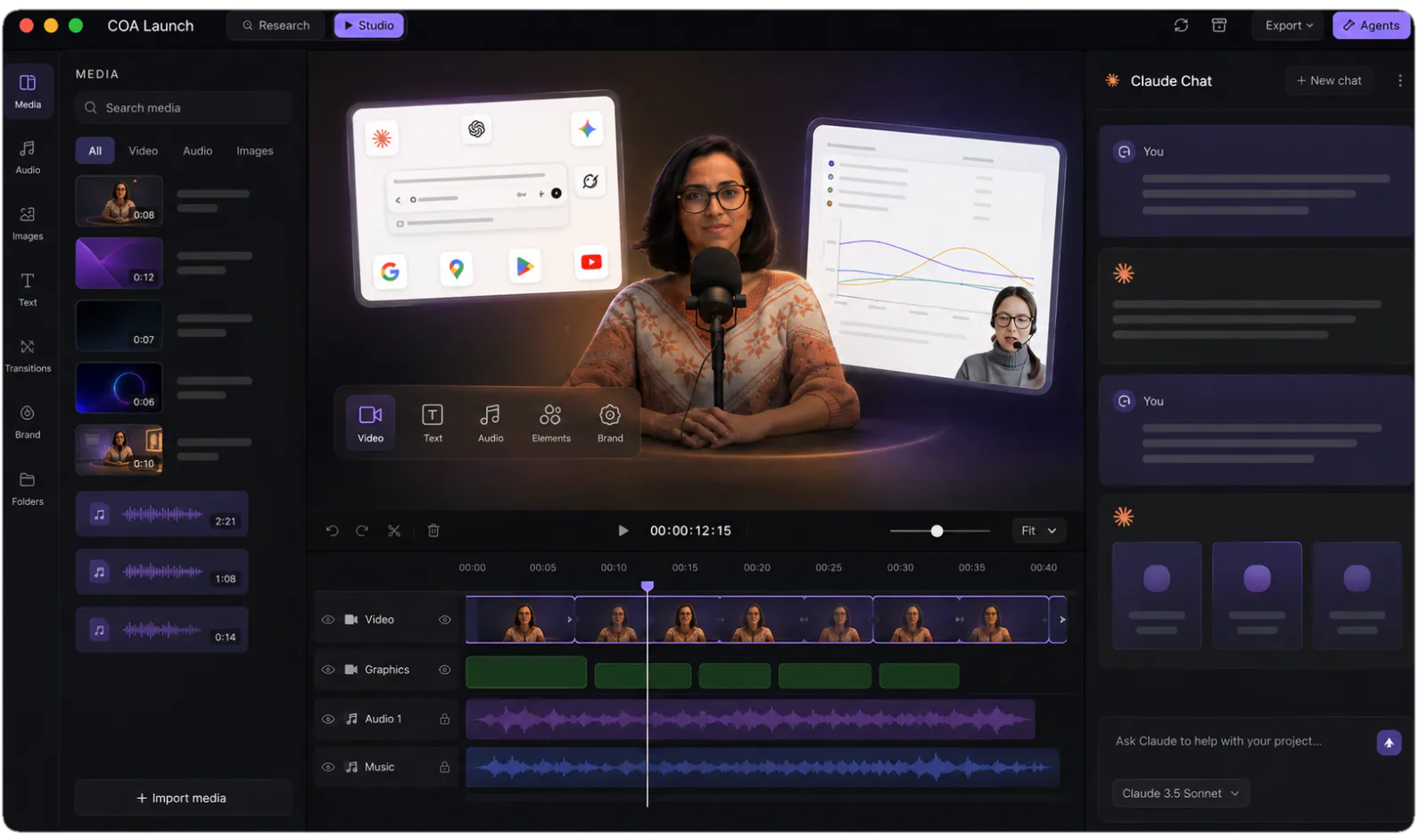
You have three real options: PowerPoint’s built-in video export, converter tools that turn slides into frames, and a rebuild, where the slide content becomes an actual animated video. CoAnimator takes the rebuild route: an AI agent turns your slide content into narrated explainer scenes, with charts that draw in, points that land on the beat, and a voice track throughout. The first two still look like a deck; the rebuild looks like a video.
The agent reads your slide content, meaning the headings, bullets and data, and re-authors it as animated scenes on a timeline: bullet lists become timed beats, charts become animated figures, and narration is generated per scene. There is no converter that screenshots slides into frames; the message survives, the deck form does not. The result renders locally to MP4 like any CoAnimator project.
Yes, and that is the strongest argument for the rebuild over a converter. The scenes are editable files, so new figures mean the agent updates the chart data and you re-render locally; the narration, structure and styling carry over. A converted slide video would have to be rebuilt from the deck every quarter.
Point your agent at the .pptx and describe the video you want. The agent reads the slides, keeps your text and images as assets, and rebuilds the deck as animated scenes with narration, so the transfer is a rebuild rather than a screen recording of slides.
There is no one-click .pptx import button; the conversion runs through your agent. A .pptx is a zip archive of readable XML, which AI agents handle natively, so the agent extracts your text, structure and data and then authors the scenes from it. Practically, you point the agent at the file and describe the video you want; the deck is source material, not a format the app plays.
Often, yes. If slides-as-video is acceptable, PowerPoint’s native export is free, fast, and the honest first thing to try. It falls short when the video needs to work as a video: motion that explains, pacing tied to narration, and scenes rather than timed stills. That is when rebuilding the content as an animated explainer earns its extra effort.
The agent drafts narration from your slide content, renders it through the voiceover plugin scene by scene, and times the animation to the voice. You can rewrite any line and re-render just that scene.
No. The agent reads the file on your machine and the video renders on your machine, so a deck full of unreleased numbers never leaves it. Converter tools work the opposite way: the upload is the first step.