Video is one of the clearest ways to explain a product, announce something new, or show people how a feature works.
It is also surprisingly difficult to keep up with.
A product demo takes a week to produce. A launch video takes longer. A tutorial can become inaccurate after one interface update. Then someone has to find the original files, reopen the edit, replace the outdated footage, fix the timing, review it again, and export another version.
For teams without an editor on staff, the alternatives are usually some combination of agencies, freelancers, complicated editing software, or cloud AI tools that generate a finished clip but leave little behind that you can meaningfully revise.
We built CoAnimator around a different idea.
What CoAnimator does
CoAnimator is an agentic animation studio where an AI agent becomes your co-animator.
You describe the video you want. The agent builds it scene by scene while you watch.
The agent can:
- Draft the script and scene list.
- Arrange screen recordings and screenshots.
- Create scenes, motion, and transitions.
- Generate or place narration and voiceover.
- Add captions, overlays, and callouts.
- Revise the project through conversation.
If you already have footage, the workflow is similar. Tell the agent what you want the recording to become, from a polished talking-head edit to a product walkthrough or launch reel, and it works directly on the project.
The result is not just another generated clip. It is a project you can open again.
Everything renders locally on Windows, macOS, and Linux. You can render as many times as you need. Paid licences remove the CoAnimator watermark.

Why finished video files go stale
Imagine you publish a product demo on Monday.
Two weeks later, the settings page gets another tab. A navigation item moves. A button changes. Pricing adds another plan.
The video is still online, but it is already showing yesterday’s product.
This happens constantly with software. A support article points customers toward the old interface. A sales deck opens with a button that has moved. A launch video continues circulating long after the product shown inside it has changed.
Nobody wants to commission a new production because one tab was renamed. So the old video stays.
That is partly a production problem, but it is also a format problem. A finished MP4 knows nothing about the project that produced it. You can trim it or place something on top of it, but you cannot tell the file:
The import button moved. Update that part and keep everything else.
The script may live in one document. Screen recordings are somewhere else. Motion has been baked into the exported frames. The narration exists as another file. Timing lives inside an editing timeline that somebody has to understand.
The first version hides this problem because launch day feels like a single event:
- Record.
- Edit.
- Review.
- Publish.
Then the product ships again. Now you need almost the same video, except it needs to reflect this week’s interface. If the export is all you really kept, you are starting another production.
We break down what that re-production costs, and when it still makes sense to hire a team, in How much does a product demo video cost?.
Your video stays editable
CoAnimator keeps the underlying project alive.
Scenes remain scenes. Recordings stay attached to the moments where they belong. Narration remains timed to the picture. Titles, transitions, effects, and motion remain editable instead of becoming permanently baked into the export.
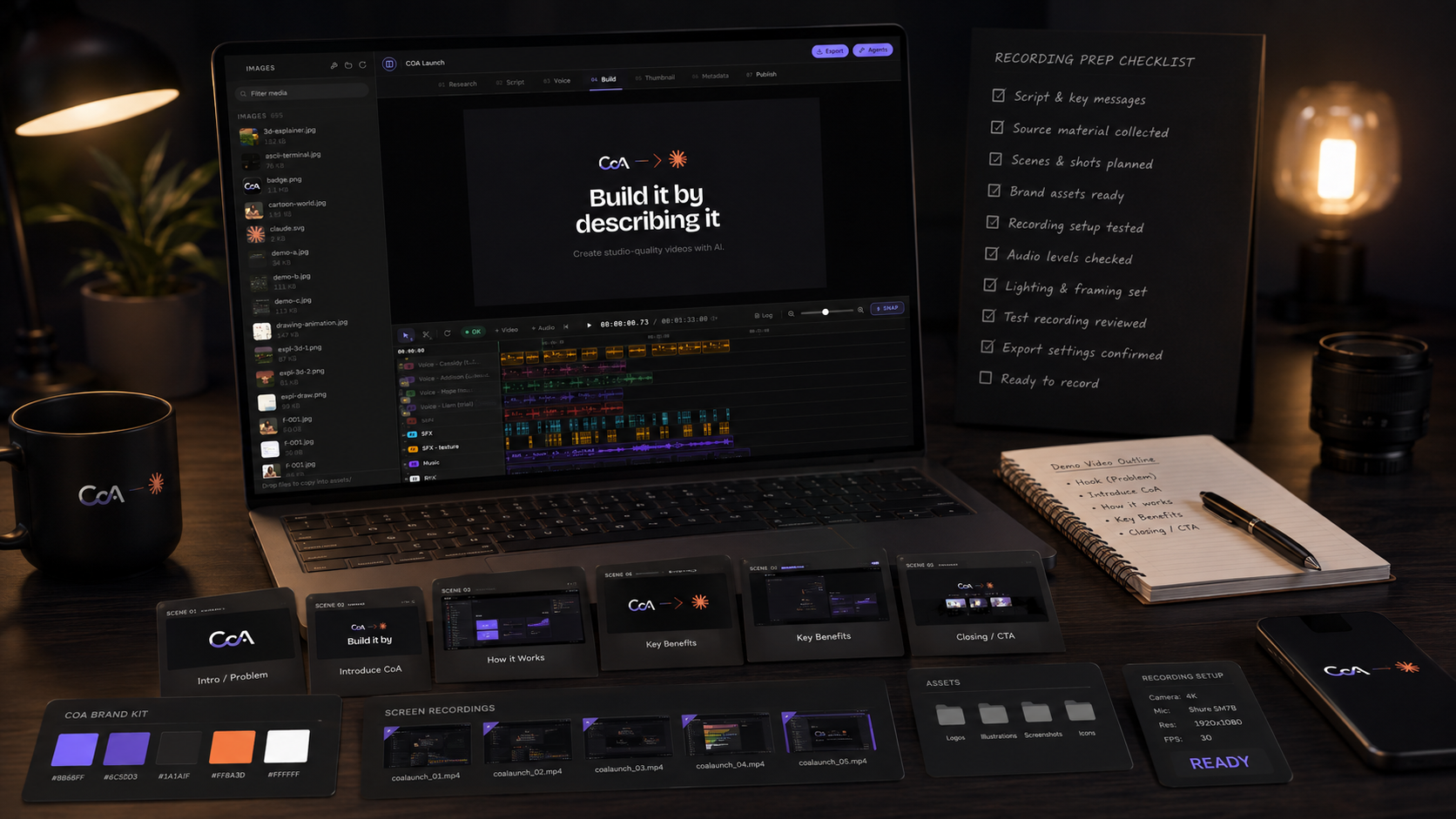
When something changes, reopen the project and tell the agent what changed:
- “The settings screen is different now. Replace the second scene with this new recording and keep the pacing.”
- “The approval button moved to the right. Update that section without changing the narration.”
The stage updates while the agent works. Parts that are still correct can stay exactly where they are. You do not need to reconstruct the entire video because one section became stale.
That changes what happens after launch:
- A product demo can follow the product.
- A support tutorial can match the current click path.
- A changelog video can reuse the same visual language as the main product demo.
- A feature launch can start from a project you already have instead of another empty timeline.
Updating the picture should feel like editing the product story, not commissioning another production.
Bring the agent you already use
CoAnimator is designed to work with the coding and AI agents people already have in their workflow.
Create a project, choose a visual style, and select an agent. CoAnimator works with:
- Claude
- Codex
- Gemini
- Cursor
- OpenClaw
- CoAnimator’s own agent
The skills required for the selected style load with the project. You do not have to manually install or configure a collection of animation tools before you can start.
And you do not need to code.
You describe what you want to make. The agent writes and updates the project. CoAnimator turns that project into the live stage and, eventually, the rendered video.
If you do code, the underlying scenes are still available to you. That separation matters. Claude or another coding agent can reason about the story, write scenes, make revisions, and respond to instructions. CoAnimator provides the animation environment and rendering system that turns those instructions into an actual video.
We explain that distinction in more detail in Can Claude Code make videos?.
Start with a brief, not a prompt trick
You do not need to learn special prompting syntax. The best starting instruction usually sounds like something you would send to an editor.
Tell the agent:
- What the video is about.
- Who it is for.
- What material you already have.
- What should matter most.
- How the finished piece should feel.
For example:
This is a 75-second product demo for [audience]. I have recordings of the import flow and final approval screen. Open with the result, not the logo. Keep the narration calm and specific. Do not invent numbers or claims we have not published.
Or:
Make a 40-second launch video for people who already understand the category. I have the new product screen and a founder voiceover. Focus on the one thing that changed. Do not turn it into a feature list.
A useful brief gives the agent constraints:
- If a recording belongs to a specific scene, say so.
- If you do not have product footage yet, say that too. The agent should not invent an interface and present it as your product.
- If a claim has not been published, keep it out.
- If the first five seconds are being wasted on company history, tell the agent to cut them.
Once the first version begins taking shape, revisions can become much smaller:
- “Hold the import screen two beats longer.”
- “Change the opening. Show the result first.”
- “Regenerate the second narration line. The voice is ahead of the UI.”
- “Keep the scene, but remove the zoom.”
- “This section is too busy. Let the screen breathe.”
You stay inside the same project and the same conversation. If an entire scene is wrong, describe what that scene should accomplish. If one line is wrong, change the line.
Our guide to making a product demo video with AI goes deeper into writing the initial brief and deciding where screen recordings should enter the process.
Voiceover is part of the project
Voice is part of the project rather than something you have to finish separately.
You can connect your own ElevenLabs API key once and let the agent generate narration as it builds. Or use a voice recording you already have. Drop the file into the project, tell the agent to follow that take, and build the visuals around it.
If one sentence sounds wrong, regenerate the sentence instead of replacing the entire voiceover.
CoAnimator does not sell voice-minute bundles. If you connect ElevenLabs, you use your own account.
Product demos that stay current

For a product demo, describe the journey the viewer should understand:
- Which screen comes first?
- What action matters?
- What should the viewer understand by the end?
The agent can place your screen recordings, create titles and callouts, add zooms, and build narration around the actual interaction. Then you refine the timing.
- If narration gets ahead of the cursor, change it.
- If a zoom happens before the viewer knows where to look, delay it.
- If the opening explains too much before showing anything useful, cut it.
The important part comes later. When the product changes, reopen the scene that is now wrong. Replace the outdated recording or tell the agent to rebuild that moment. The pacing you already approved can stay. So can the title treatment, narration that still applies, transitions, and the rest of the project.
You do not need to regenerate everything because one panel moved.
The same source project can also produce different kinds of product content:
- A tutorial can use the same flow with slower pacing and more explanation.
- A launch video can compress it into the one change people need to understand.
- A changelog video might need only one new control, one movement, and one sentence explaining what shipped.
Because they can share the same source material, each format is less likely to drift into a different version of the product.
For the full step-by-step workflow, see How to make a product demo video with AI, step by step.
Render from CI with the coa CLI
If video already belongs inside your release process, rendering does not have to stop at the desktop app.
CoAnimator includes a headless coa command that can render the same project without opening the interface. That makes it possible to treat video as another build artifact:
- Your product changes.
- The relevant source material changes.
- The video renders again.
Documentation for the command and developer workflow is available at coanimator.com/developers.
Edit footage you already have

Not every project starts with an empty stage. A lot of unfinished video is already sitting on someone’s drive:
- A podcast episode.
- A founder interview.
- A talking-head recording from a phone.
- Launch-event footage.
- Customer interviews.
- A folder full of clips from a conference.
The recording exists. The edit does not.
In CoAnimator, you can start with the footage and describe what you want it to become:
- “Make this feel like a cinematic founder introduction. Freeze on each person and introduce their name like an action-film title card.”
- “Glitch the title in, place ON AIR behind me, then make the room black and white while keeping me in colour.”
- “Freeze the opening frame, cut me out with a sticker-style border, add my name, then continue the video.”
- “Make this feel like it was shot on a cinema camera with shallow depth of field.”
The agent applies the treatment to the footage already inside the project.
Podcast clips
Find the section worth sharing, add captions for muted viewing, identify the speaker, build a stronger opening, and turn a long conversation into something designed for distribution.
Reels and short-form video
The first second matters. Start with the strongest line, burn captions into the video, add an opening title, then generate the aspect ratios needed for different feeds.
Event recaps
Bring talking-head interviews, booth footage, stage clips, and b-roll into one project, then give the footage a consistent visual treatment.
Talking-head videos
A single person in front of a wall can still feel deliberately produced. Titles can move behind the subject. The frame can freeze for an introduction. Phone footage can take on a more cinematic treatment. Captions, overlays, and transitions can be created around the speaker instead of manually stacked in an editor.
The CoAnimator demos show original footage next to the edited result. Each example began with an instruction.
Real videos already made with CoAnimator
We have also used CoAnimator to produce full product videos.
The MCP360 product demo was created in CoAnimator, including its voiceover.
The script, scenes, narration, revisions, and final render came from the same project.
The Copilot SDK v2.5 launch video was produced through the same workflow and reached 417K views on X.
Both examples, along with footage-editing demos, are available on the demos page.
Start from a template, not from zero
You do not need to design every project from scratch. CoAnimator ships with ready-made project templates that include working scenes, motion, pacing, and an agent skill so the agent already understands the format. Pick the one closest to the video you want, describe the details, and start building.
-
Product Demo Built for software walkthroughs. Drop in your screen recordings and screenshots, and the agent arranges them into a paced demo with callouts, zooms, narration, and a clean CTA. Best for homepage explainers, feature launches, and tutorials.
-
Motion Graphics For launch videos, product announcements, and brand stories that need designed type, shape, and transition systems. The agent treats type and layout as first-class elements rather than captions slapped on top.
-
Talking Head Edit Start with a person on camera and let the agent build around them: captions, lower thirds, title cards, freeze frames, background effects, and platform variants. The speaker stays real; everything else becomes deliberate.
-
Footage Treatment For clips and recordings that need a stylistic pass without replacing the source. Add cinematic color, glitch effects, sticker borders, spotlighting, or black-and-white isolation with a single instruction.
-
Scene Explainer When the story already exists as a sequence of ideas, pages, or concepts. The agent builds one scene per beat, keeps the structure readable, and lets you reorder the narrative without rebuilding motion.
-
3D Explainer Useful when the story is easier to understand spatially: architecture, processes, devices, or anything with depth. The agent works inside a low-poly or abstract 3D world rather than a flat canvas.
-
Drawing Animation Creates an illustrated, hand-built look. Good for education, storytelling, and product overviews where the viewer should feel the video being drawn in real time.
-
ASCII / Terminal For developer tools, CLI products, and security or infrastructure stories. The agent turns terminal output, code, and network diagrams into animated sequences that feel native to the medium.
Every template includes a skill that teaches the agent the format’s conventions: timing, layout, typography, and what kinds of assets work best. That means the first prompt lands much closer to a usable draft. The template is the starting point, not the ceiling. Colors, pacing, motion, and media can all be changed once the project is open.
Why the second video changes the cost
The price of a video is usually discussed as though you are buying one finished piece. That is rarely what software teams actually need.
You need:
- The launch video.
- The tutorial.
- The revised tutorial.
- The new product demo.
- A shorter cut for social.
- Another version because the interface changed.
That second, third, and fourth video are where production costs compound.
Based on the pricing research we published on 18 August 2026, a 60-second product video can commonly cost:
- $5,000 to $15,000 from an agency.
- $4,000 to $6,000 from a specialist studio.
- $1,000 to $3,000 from a freelancer.
There are situations where paying for that level of production is absolutely the right decision. A major brand campaign, live-action production, complex creative direction, or a launch where every frame needs bespoke craft can justify a specialist team.
But a button moving should not trigger another production cycle. That is the category CoAnimator is designed for.
We break down those costs, trade-offs, and the cases where hiring a production team still makes more sense in How much does a product demo video cost?.
Pricing: pay once, render forever
You can use the full studio without paying. Free exports include a Made with CoAnimator watermark.
A paid licence removes the watermark.
CoAnimator currently costs:
- $99 once, including tax, reduced from the listed $249 price.
- Two devices included in the licence.
- $29 per device for additional device slots, as a one-time purchase.
- No subscription required to keep using the version you bought.
- One year of updates included.
- $79 per year for continued updates after the first year, optional. If you do not renew updates, the installed version continues to work.
- 14-day money-back period.
You purchase the licence through coanimator.com/pricing. The desktop app itself does not handle payments.
Rendering runs locally on Windows, macOS, and Linux, so footage does not need to be uploaded to CoAnimator simply to produce an export. The current video export format is MP4. Lottie export is on the roadmap.
For a detailed cost comparison against agencies, freelancers, and AI-assisted tools, see How much does a product demo video cost?.
Publish only when you are ready
Rendering a video does not mean publishing it. The MP4 on your machine is already the finished output.
If you want to send a draft directly to YouTube, you can connect your own Google Cloud OAuth credentials. Uploads are created as private videos, so an agent cannot accidentally publish an unfinished project to your channel. You can review the upload in YouTube Studio before making it public.
Download CoAnimator today
CoAnimator is available now.
You do not need to begin with an ambitious launch film. Start with:
- The demo that became outdated.
- The tutorial you have been postponing because the interface keeps changing.
- The screen recording that should have become a product video.
- The founder clip sitting untouched in a folder.
- The launch video you know you need but do not want to rebuild every time the product moves.
The first instruction can be simple: tell it the video you want. Then keep talking while it builds.