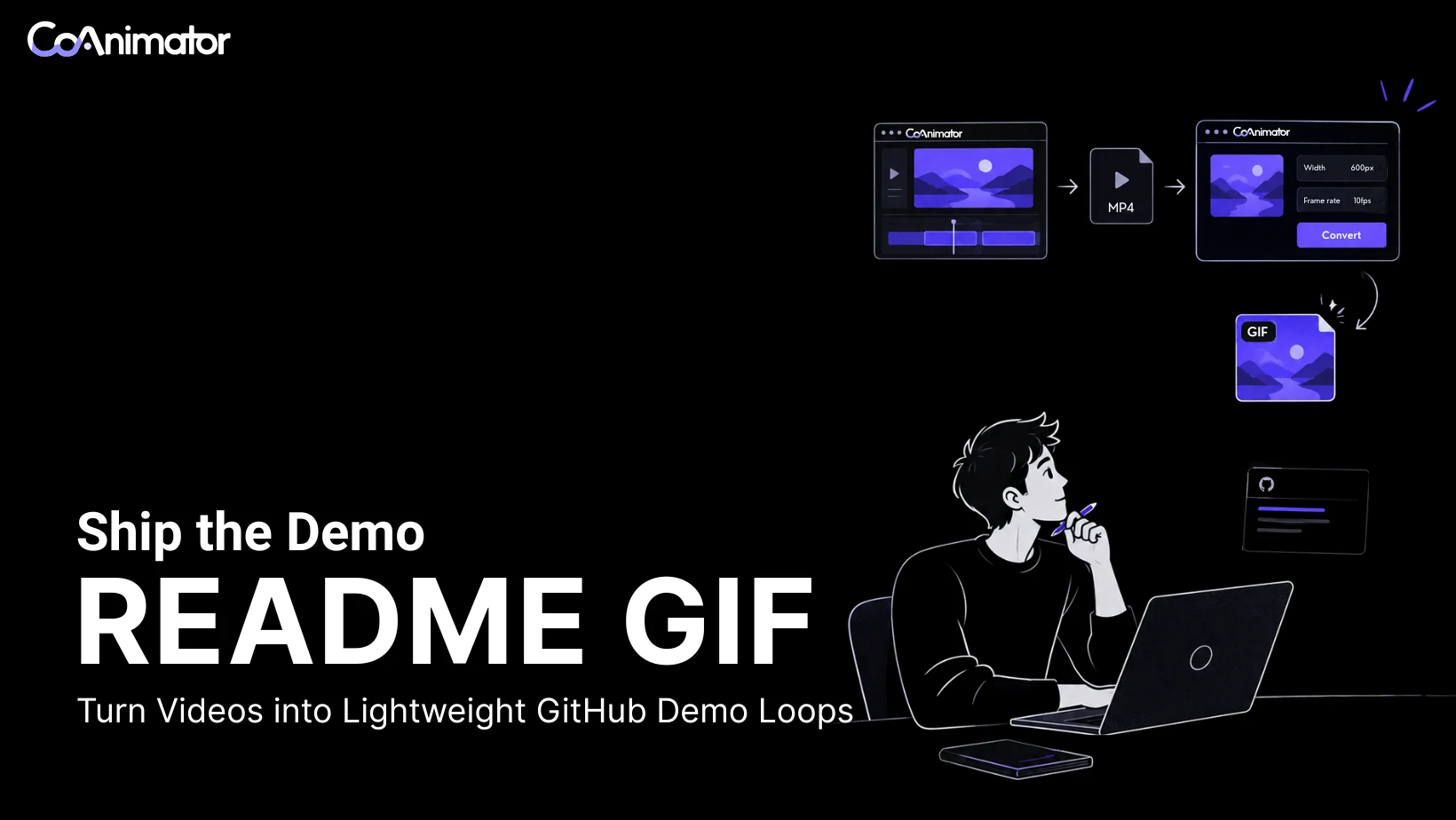
To make and add a demo GIF to a GitHub README, record one action, convert the clip to GIF, and save it in your repository or upload it as an attachment. Embed it with . Start at 600–640 pixels wide and 10 frames per second, then check readability and file size.
This example assumes README.md is at the repository root and the GIF is saved as docs/demo.gif. You can also use a hosted image URL if you want to keep the binary file out of the repository.
The steps below cover both an existing screen recording and a demo prepared in CoAnimator. You only need one source video; making a new animation is optional.
Step 1: Record one action and its result
Choose something a reader can understand without narration: running a command, filtering a list, generating a chart, or changing a setting. Show the starting state, the action, and the result in that order.
For example, a task-manager demo could show a list of tasks, a click on “Overdue,” and the filtered list. There is no need to include sign-in, navigation to the page, or a tour of unrelated features.
Before recording, enlarge the application text and crop the capture area to the relevant panel. Close notifications and use sample data so private names, tokens, or customer information do not appear in the clip. Hold the final result long enough to read it before the animation restarts.
Judge the composition at the size readers will see. A full desktop reduced from 1920 pixels to 600 pixels makes a 24-pixel label roughly 7.5 pixels tall. Increasing export quality cannot recover readability lost by shrinking the interface that far. A tighter crop or larger source text can.
Record your screen or use an existing clip
You can capture the source video with the recorder included in your operating system:
- macOS: Press
Shift+Command+5, choose the option to record a selected portion, frame the application, and start recording. See Apple’s screen-recording instructions. - Windows 11: Open Snipping Tool, select Record, then New, and select the area to capture. See Microsoft’s Snipping Tool guide.
Save the recording, then remove the setup and waiting time in your editor or converter. If you already have a clear, short clip, take it straight to Step 2.
If you are preparing the demo in CoAnimator
CoAnimator’s creation workflow lets you describe a video to an agent and review the resulting project. Give the agent the actual recording or accurate project details, and specify what viewers should see. For example:
Use the attached task-manager recording to make an 8-second silent demo.
Show the full task list, the click on Overdue, and the filtered result.
Crop to the task panel and keep the labels readable at 640 pixels wide.
Hold the result for the final 2 seconds. Do not invent interface elements
or change the result shown in the recording.
Review any generated animation against the product. A staged command or progress bar can explain a process, but it should not imply a measured execution time or working feature that the project does not have.
When the sequence is ready, open Export, choose the relevant timeline and range, and save an MP4. For this workflow, 720p or 1080p at 30 fps is a reasonable intermediate output if available; keep an existing recording at its native frame rate rather than increasing it. Check the export documentation for current resolution and licence options.

Step 2: Convert the clip to GIF
Use either the browser converter or FFmpeg. Both routes produce the image you will host and embed; you do not need to run both.
Convert in the browser
Open CoAnimator’s Video to GIF converter, choose your video, select the segment, and set the output to GIF. The tool processes the conversion locally in your browser and does not add a watermark. It does not remove a watermark already present in the source video.

Use these starting points, then inspect the downloaded result:
| Setting | Starting point | When to change it |
|---|---|---|
| Duration | 5–10 seconds | Shorten setup and pauses; keep enough time to read the result. |
| Width | 600–640 pixels | Crop or enlarge source text before reducing width further. |
| Frame rate | 10 fps | Try 8 fps for mostly static UI, or 12–15 fps if motion looks too uneven. |
| Palette | Default initially | Try fewer colors for flat interfaces if the file is too large. |
| Dithering | Compare the available options | Look for speckled text, patterned backgrounds, or visible color bands. |
Dithering uses patterns of available colors to approximate missing shades. It can make gradients look smoother, but it can also add visible texture. Compare the result at normal viewing size; no single dithering option is the smallest or clearest for every recording.
Convert with FFmpeg
If you have FFmpeg installed, the following commands create a palette from a selected clip, then use it to encode the GIF. Run them in the directory containing input.mp4, or replace that filename with your video’s path.
The example takes eight seconds starting at the two-second mark. Your source must contain that interval; use -ss 0 in both commands to start at the beginning:
ffmpeg -ss 2 -t 8 -i input.mp4 -vf "fps=10,scale=600:-1:flags=lanczos,palettegen" -frames:v 1 -update 1 palette.png

ffmpeg -ss 2 -t 8 -i input.mp4 -i palette.png -filter_complex "[0:v]fps=10,scale=600:-1:flags=lanczos[v];[v][1:v]paletteuse=dither=bayer:bayer_scale=3" -an -loop 0 demo.gif
Keep the start time, duration, frame rate, and scale identical in both commands when you edit them. scale=600:-1 sets the width and preserves the aspect ratio. palettegen chooses a palette from the clip; paletteuse applies it. FFmpeg documents both in its palette filters reference.
We tested these commands on a 1280 × 720, 30 fps sample video. The output contained 80 frames over eight seconds at 600 × 338 pixels. That confirms the conversion settings, not a file-size promise for other footage.
-loop 0 requests continuous looping. Use -loop -1 instead to encode a single play, then verify playback in your target viewer. FFmpeg asks before overwriting existing output files, so use a new name when comparing versions.
Step 3: Reduce file size without losing the demonstration
Measure the exported GIF rather than predicting its size from duration alone. A clip with static panels can compress differently from one with scrolling, gradients, or full-screen transitions, even at the same dimensions and frame rate.
If the output exceeds your size budget, change one thing at a time:
- Trim unnecessary time. Remove the lead-in and long waits, while preserving the action and a readable result.
- Crop unused space. Keep the relevant interface large within a smaller image.
- Lower the frame rate modestly. Compare the motion at 10 and 8 fps before accepting the smaller version.
- Compare palette and dithering settings. Flat interfaces may tolerate fewer colors; gradients and photographs may not.
- Reduce dimensions only while text remains legible. If the demonstration needs more space, use a static preview linked to video instead.
The goal is a file that is small enough to load comfortably and clear enough to explain the feature. A smaller GIF that makes the command unreadable has lost its purpose.
GitHub currently limits image and GIF attachments to 10 MB. That limit applies to the attachment workflow below; it is not a recommended README file size or a blanket limit for every image-hosting method. See GitHub’s attachment documentation.
Step 4: Choose where the GIF will live
There are two straightforward choices. Keep the image in the repository when having the documentation and its assets together matters. Use a hosted attachment when you want to avoid adding frequently replaced binaries to Git history.
Option A: Store it in the repository
Save the file at a predictable path such as docs/demo.gif. Commit it alongside the README change. This keeps the asset available in clones and lets a documentation change refer to the matching image on the same branch.
The tradeoff is history: replacing or deleting a tracked GIF in a later commit does not remove its earlier versions from existing Git history. Keep the original high-resolution recording outside the repository unless contributors need it there.
Option B: Use a GitHub attachment
In the intended repository, drag the GIF into an issue or pull-request comment editor. Wait for the generated image Markdown, then copy it into your README. Uploading happens immediately; submitting the comment is not required to obtain the URL. Use the generated URL rather than constructing one yourself.
GitHub states that public-repository uploads are accessible without authentication, while private and internal uploads require repository access. A public README should therefore not depend on an attachment uploaded to a private repository. These access rules are described in the same attachment documentation.
Keep a local source copy so you can replace or move the asset later. Hosting it separately avoids a Git commit for the binary, but you still need to maintain the link.
Step 5: Embed it and check the rendered README
Place the demo after a short explanation of what the project does, where readers have enough context to understand the action. For a root-level README and a repository-hosted file, use:
## Demo
Filter the task list to show only overdue items.
GitHub resolves relative image paths from the Markdown file’s location. If the README is inside docs/ and the GIF is beside it, the path would be demo.gif. GitHub recommends relative links for repository images in its Markdown formatting guide.
For an attachment, replace docs/demo.gif with the generated image URL. Alt text should describe the useful information or result, rather than saying only “demo.” Keep essential commands and instructions in ordinary README text too, so readers can copy them and understand the example without watching.
After saving the README, check the actual GitHub page:
- Readability: Can you read the important text at normal zoom, including on a narrow screen?
- Sequence: Are the starting state, action, and result understandable without sound?
- Access: For a public project, does the image load while signed out? For a private project, test with an account that has the intended access.
- File loading: Does the final hosted image load, rather than merely working in your local editor?
- Playback: Does the loop or single-play behavior match what you encoded, when animation is enabled?
GitHub lets readers control Autoplay animated images under Settings → Accessibility → Motion and follows the system’s reduced-motion preference by default. A GIF that waits for interaction may be behaving correctly. Make its first frame useful and respect the reader’s preference. See GitHub’s motion settings.
A local Markdown preview and GitHub can behave differently. Check any additional destination separately if the same README is published to a package registry or documentation site.
Troubleshooting a README GIF
| Problem | What to check | What to change |
|---|---|---|
| Broken image | Path, filename case, branch, and attachment permissions | Correct the relative path or use the generated attachment image URL. |
| Image works only when signed in | Whether its source is private | Host it somewhere the intended readers can access. |
| GIF shows one frame | GitHub motion preferences, whether the file contains animation, and whether a single play has ended | Check the viewer settings first; open the file directly before deciding to reconvert. |
| Text looks blurred | How much the original interface was reduced | Crop more tightly or record with larger text. |
| Gradients look striped or grainy | Palette and dithering choices | Compare settings, simplify the background, or use video. |
| Loop jumps abruptly | The transition from the last frame to the first | Hold the final result and use a deliberate reset to the starting state. |
| File is too large | Duration, capture area, and unnecessary motion | Trim and crop before sacrificing legibility. |
If a repository asset uses Git LFS, confirm that the URL delivers the image itself rather than a pointer file. Treat that as a delivery problem to investigate, not proof that GitHub cannot animate the GIF.
When to use a static preview linked to video
Use video when readers need narration, playback controls, a longer walkthrough, or a detailed view of the interface. GIF has no audio or video-style timeline for seeking to a specific moment. GitHub can control its animation, but that does not make it a narrated, scrubbable walkthrough.
Continuous motion also deserves consideration. W3C’s Pause, Stop, Hide guidance covers automatically moving content that lasts more than five seconds and appears alongside other content. A short animation repeated indefinitely does not avoid that concern simply because each cycle is brief. A static preview linked to a video lets readers choose when to watch.
For example, if your repository contains docs/demo-preview.png and the full recording is hosted at the placeholder URL below:
[](https://example.com/demo)
[Watch the narrated walkthrough](https://example.com/demo)Replace both placeholder URLs with your actual video page. This gives readers a clear link without depending on inline video playback in the README. If the walkthrough grows beyond one action, the product demo video guide covers how to structure a longer sequence.
Frequently asked questions
Does GitHub support animated GIFs in a README?
Yes. Embed a GIF with Markdown image syntax, using either a repository path or a hosted image URL. Animation depends on the viewer’s motion settings, so the first frame and surrounding text should still explain the demo when autoplay is off.
Can I add a GIF without committing it to the repository?
Yes. Upload it through an issue or pull-request comment editor and copy the generated image Markdown into your README. Keep the attachment accessible to the same audience as the README. The image stays outside Git history, while the README records its URL.
Why is my README showing a link instead of the GIF?
Check for the leading exclamation mark. [Demo](docs/demo.gif) creates a link;  embeds an image. If the syntax is correct but the image is broken, check the file path and access permissions.
Does reducing the displayed width make a GIF smaller to download?
No. Displaying a large GIF at a smaller width does not change the source file’s byte size. Resize it during conversion and host the smaller output. Use a tighter crop if reducing the dimensions makes the interface unreadable.
Can a README GIF include sound?
No. GIF does not contain an audio track. Use a static preview linked to a video for narration, and include captions or a text explanation so the walkthrough is also useful without sound.