A product walkthrough can be accurate when you publish it and misleading after the next release. A renamed button affects the narration. A moved sidebar affects the recording and its annotations. Updating the video means finding those connections, changing the affected scenes, and checking the result.
AI can help at several points in that process. It might transcribe the narration, generate a clip, follow a production template, or decide which scenes need attention. Those are different responsibilities, even when the tools use similar chat interfaces.
This guide focuses on product demos, tutorials, and other videos that may need updates. The first four levels provide a baseline for understanding agentic work; an agent starts choosing production steps at Level 5. The numbers organize the explanation rather than measure video quality. A team can combine several approaches in one project.
We build CoAnimator. The product discussion below distinguishes documented features from behavior that must be verified in an actual session. The walkthrough examples and illustrations are explanatory, not results from a comparative product test.
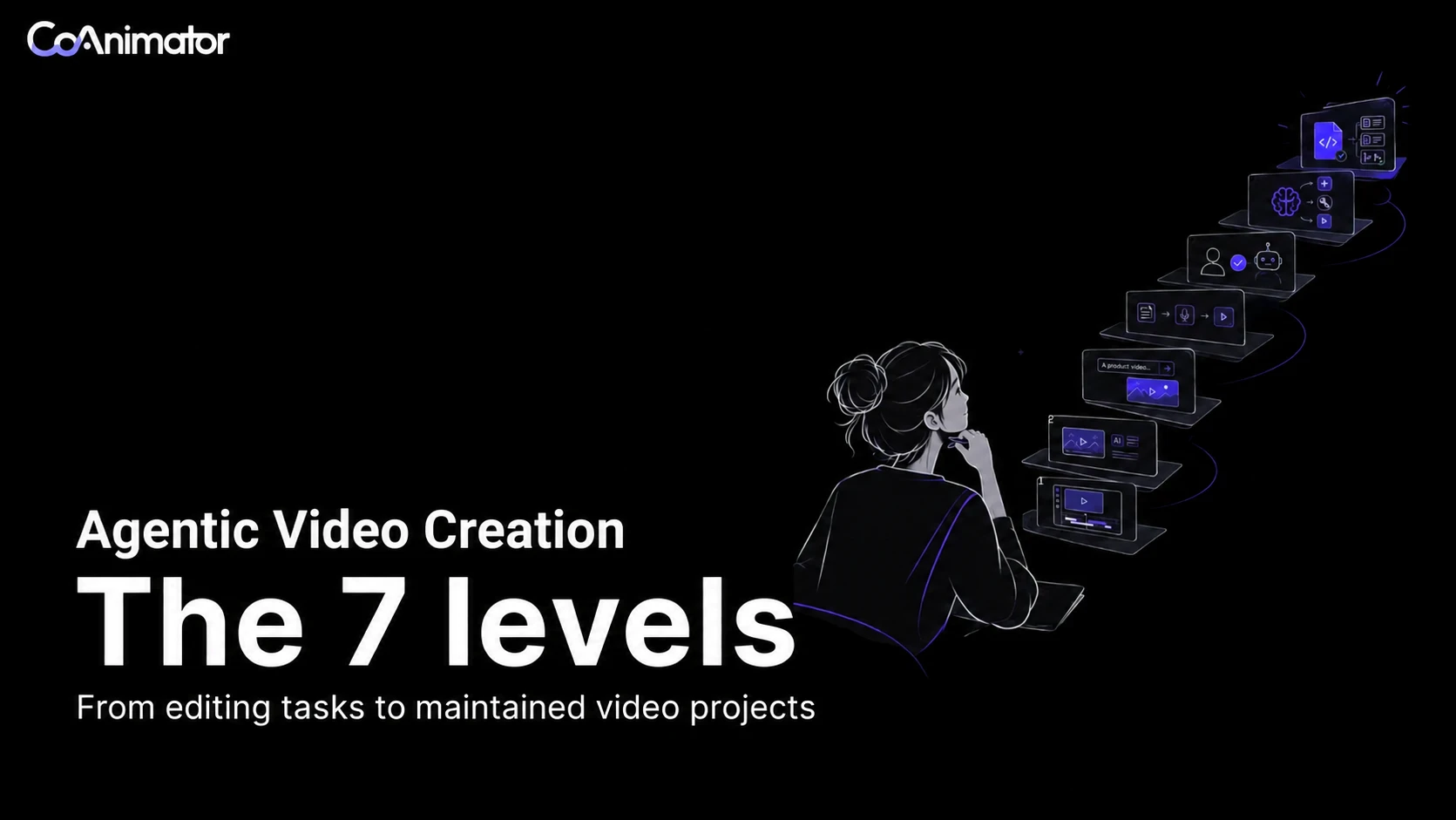
The seven levels at a glance
The useful question is which responsibility you want to delegate: an individual task, a production sequence, decisions about the next edit, or the work of maintaining a video over time.
| Level | What software handles | What a person still needs to establish |
|---|---|---|
| 1. Manual editing | Editing tools execute the person’s choices | The plan, edits, and review |
| 2. AI-assisted tasks | A selected task, such as transcription | Which tasks to run and whether their results are correct |
| 3. Prompted generation | A requested clip or other asset | What to generate, which output to use, and how it fits the video |
| 4. Predefined workflows | A production process with specified steps and rules | The process, its inputs, and checks for exceptions |
| 5. Agent-directed editing | A plan and a choice of editing actions | The brief, permission boundaries, and acceptance of the work |
| 6. Agents that inspect and revise | Editing decisions informed by inspection of the result | Review criteria, a stopping limit, and final approval |
| 7. Agents that maintain a saved project | The Level 6 process applied to later changes in an existing project | Reliable source material, retained assets, and approval of each release |
These patterns overlap. An agent can use a predefined captioning workflow, and a manually edited project can be carefully archived. Generating footage is optional at every agentic level. Approval settings and project storage should be evaluated separately from who makes editing decisions.
What makes video creation agentic?
Agentic AI video creation is a process in which an AI system chooses some of the actions needed to meet a video brief. For example, it might decide that a narration change requires a longer scene, or that an unreadable caption should move before another render.
A fixed workflow specifies the sequence or permitted branches in advance. An agent selects actions while working on the task. This distinction follows Anthropic’s explanation of workflows and agents. It concerns control of the process, not whether the interface contains a chat box or whether several AI models are involved.
Three separate properties help you evaluate that process:
- Decision-making: Does a person specify the next operation, does a rule select it, or does an agent choose it from the brief and available evidence?
- Inspection: Does the system examine the result and use what it finds to change an edit?
- Maintainability: Can someone reopen the project, recover its assets, and make a specific change later?
Human approval is a separate choice. An agent can inspect a video and still ask before changing it. Allowing it to act without asking does not make its judgments more accurate. The research paper Levels of Autonomy for AI Agents likewise treats autonomy as a design choice distinct from capability.
Our framework combines these properties to describe practical workflows. It does not reproduce the levels in that paper or in the 2026 preprint on agentic visual generation, which classifies systems by the decisions their controller can make. In particular, maintaining an old project is different from learning a lesson that improves an unrelated future project.
One example: updating a 40-second product demo
Imagine a three-scene walkthrough for an analytics app: an introduction, a demonstration of saving a view, and an outro. The team has an approved script, a screen recording, and brand assets. The finished video must be no longer than 40 seconds.
Three weeks later, Save view becomes Pin view, and the sidebar moves. The team supplies a new recording. The intro and outro are still approved; only the demonstration and its related narration and captions should change.
The following sections use this hypothetical update to show how responsibility differs. They do not assume that a particular product can complete the task. At every level, the new recording remains necessary if the video must show the changed interface accurately.
Level 1: Manual editing
In a manual workflow, a person plans the sequence, chooses the footage, adjusts timing, and reviews the export. The editor’s software carries out those choices. Keyboard shortcuts, templates, and ordinary automated functions do not change who directs the work.

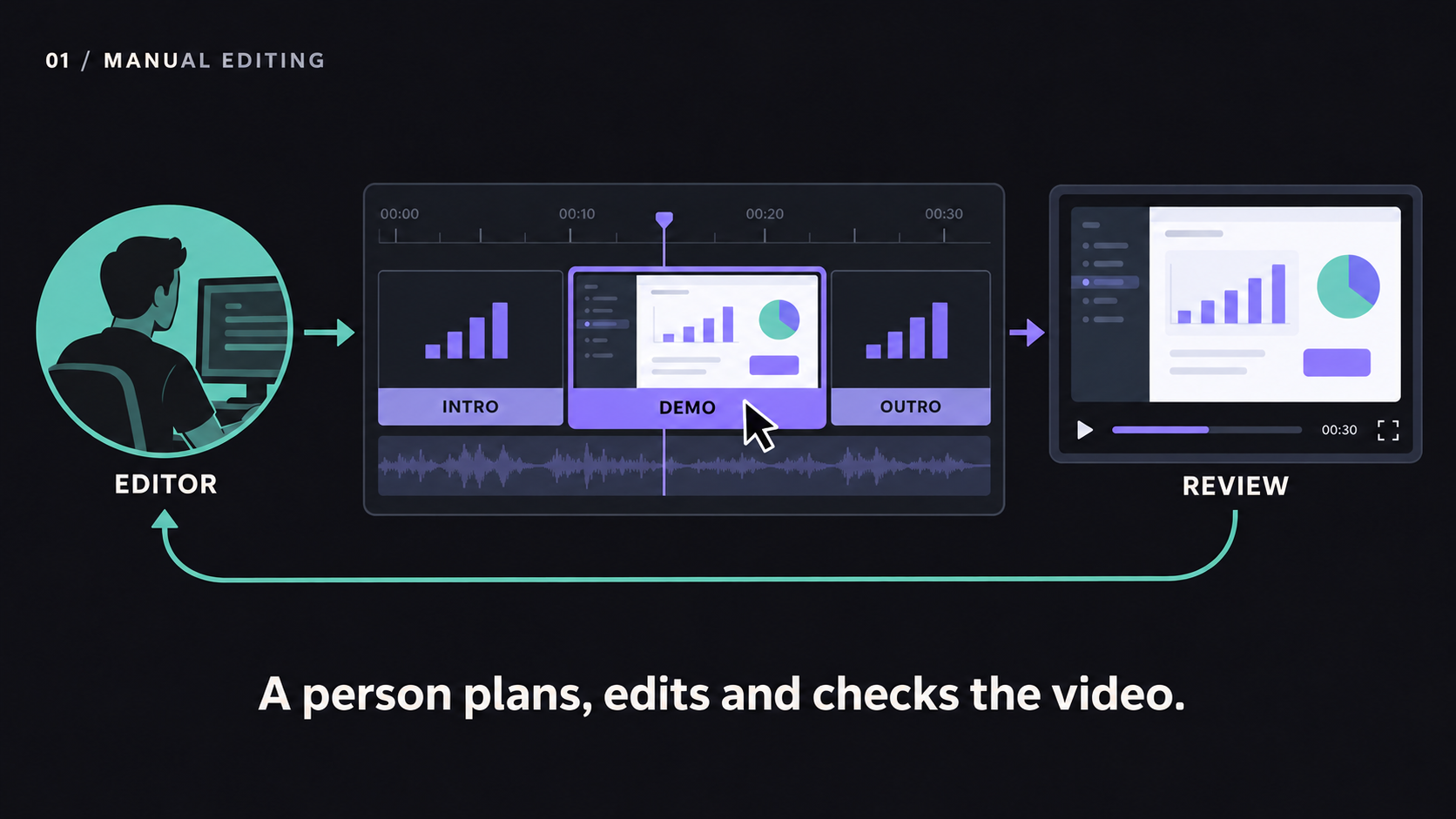
For the walkthrough update, the editor locates the demonstration scene, replaces the old recording, changes the narration, and repositions the caption. They then watch the revised section in context. A longer voiceover may require a timing adjustment even when the wording change is small.
This approach gives the editor direct control over pacing and presentation. It is a reasonable choice when the changes are infrequent, the project is short, or the editing decisions are difficult to specify in a brief. Its cost is the person’s time spent performing and checking each operation.
Manual editing does not mean disposable work. A saved timeline with its media and fonts can remain editable for years if the required files and software are preserved. Project durability is possible before any AI enters the process.
Level 2: AI-assisted tasks
Here a person still directs the edit but delegates a specific task to AI: transcribing speech, drafting captions, or identifying candidate cuts. For example, Adobe’s Speech to Text documentation describes generating a transcript and captions in Premiere. That is a concrete task capability, not evidence that the software independently manages the production.

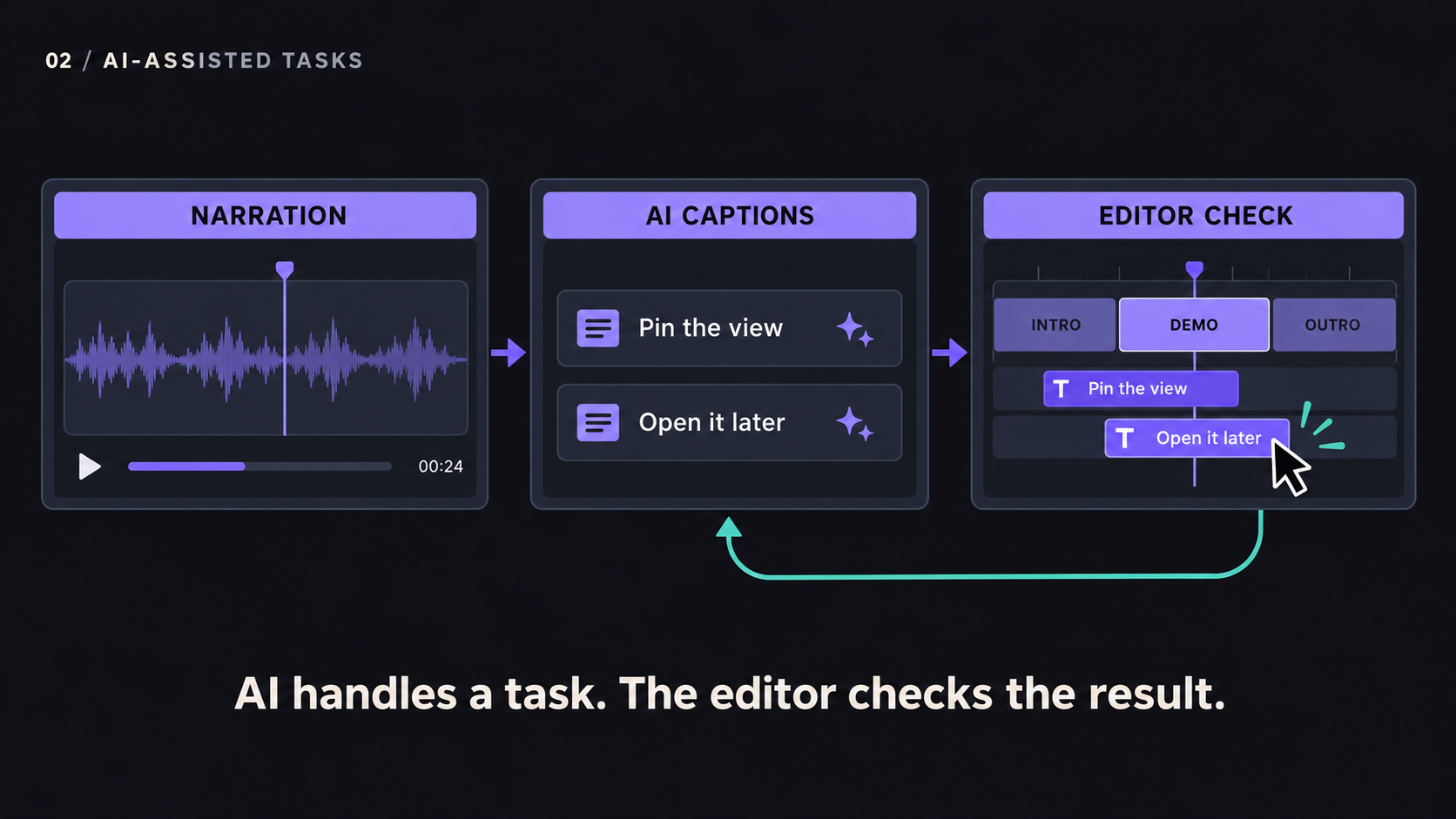
In the example, the editor can use automatic transcription on the new narration and review the resulting captions. The editor still establishes that the recording, voiceover, and on-screen label agree. Accurate transcription of an outdated script would preserve the wrong instruction.
This pattern suits work where one repetitive task takes time but the overall edit remains straightforward. Check the output at the task’s boundary: spelling and timing for captions, intelligibility for audio cleanup, or whether a suggested cut removes necessary context.
Using several AI features does not automatically create an agentic workflow. If the person continues to choose and connect every operation, the workflow remains person-directed.
Level 3: Prompted generation
A person describes an asset and a model produces it. The asset might be a video clip, a background, an illustration, or narration. The person chooses which result to keep and how to use it in the larger edit.

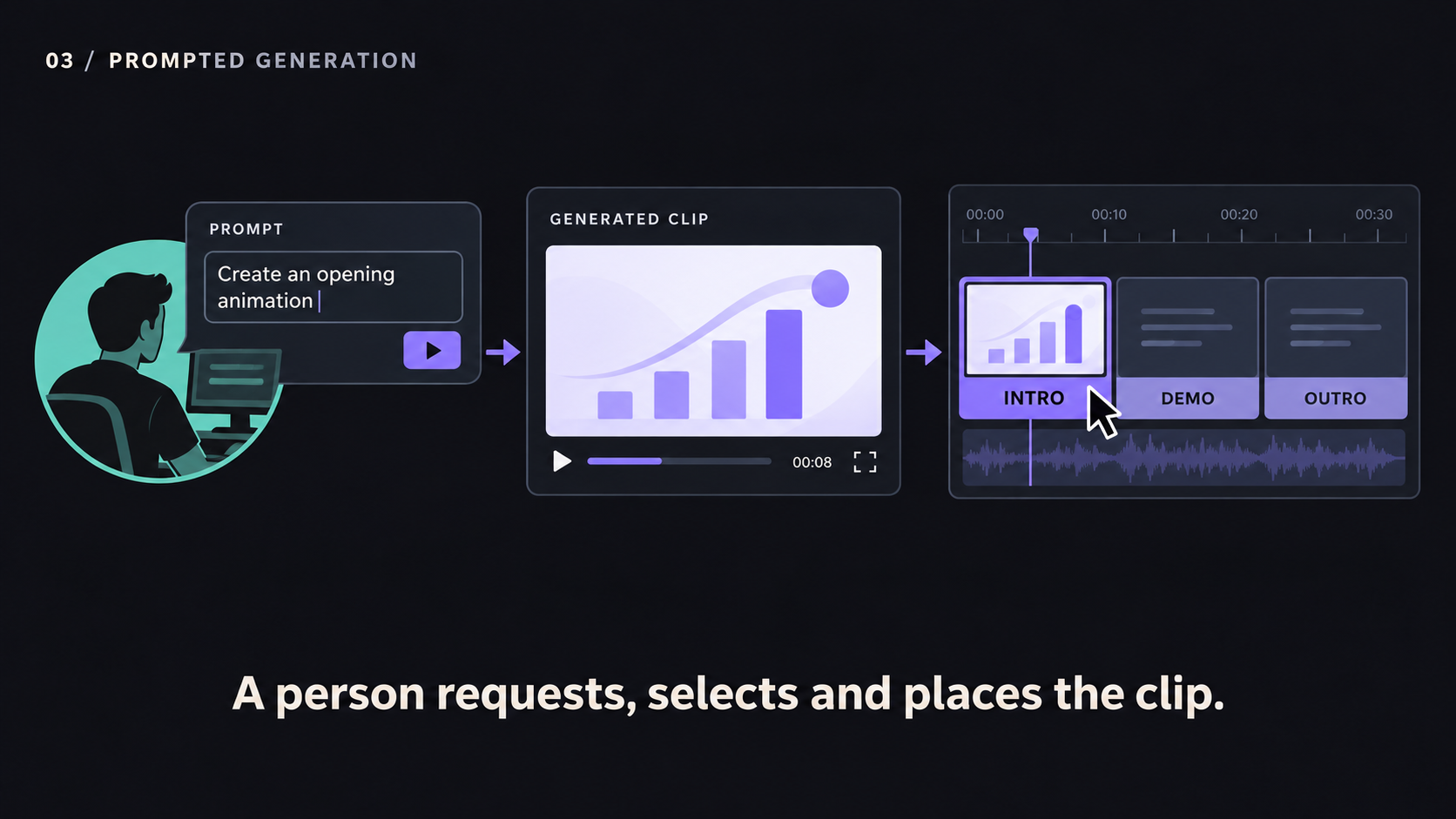
When first creating the walkthrough, prompted generation might supply an introductory animation while the demonstration uses the actual screen recording. During the later update, that approved intro should stay unchanged and the supplied recording should replace the outdated demonstration. Trying to generate the interface itself introduces a different verification problem: labels, control positions, and interactions must match the real product. A reference image can guide an output, but it should not be treated as a guarantee of exact reproduction.
This approach is useful when the brief needs imagery that the team does not already have. It is less suitable as unverified evidence of what a real application does. Review the generated asset for its intended role before assembling it with the rest of the video.
A generation product may also offer agent features or saved projects. Classify the workflow you use, rather than assigning the entire product to Level 3. A prompted clip can be one input to a Level 6 editing process.
Level 4: Predefined workflows
A predefined workflow connects tasks through specified steps and rules. For example, it can take release notes, prepare narration, place screenshots into a template, create captions, and render a video. It can also include branches, retries, cached assets, and validation.

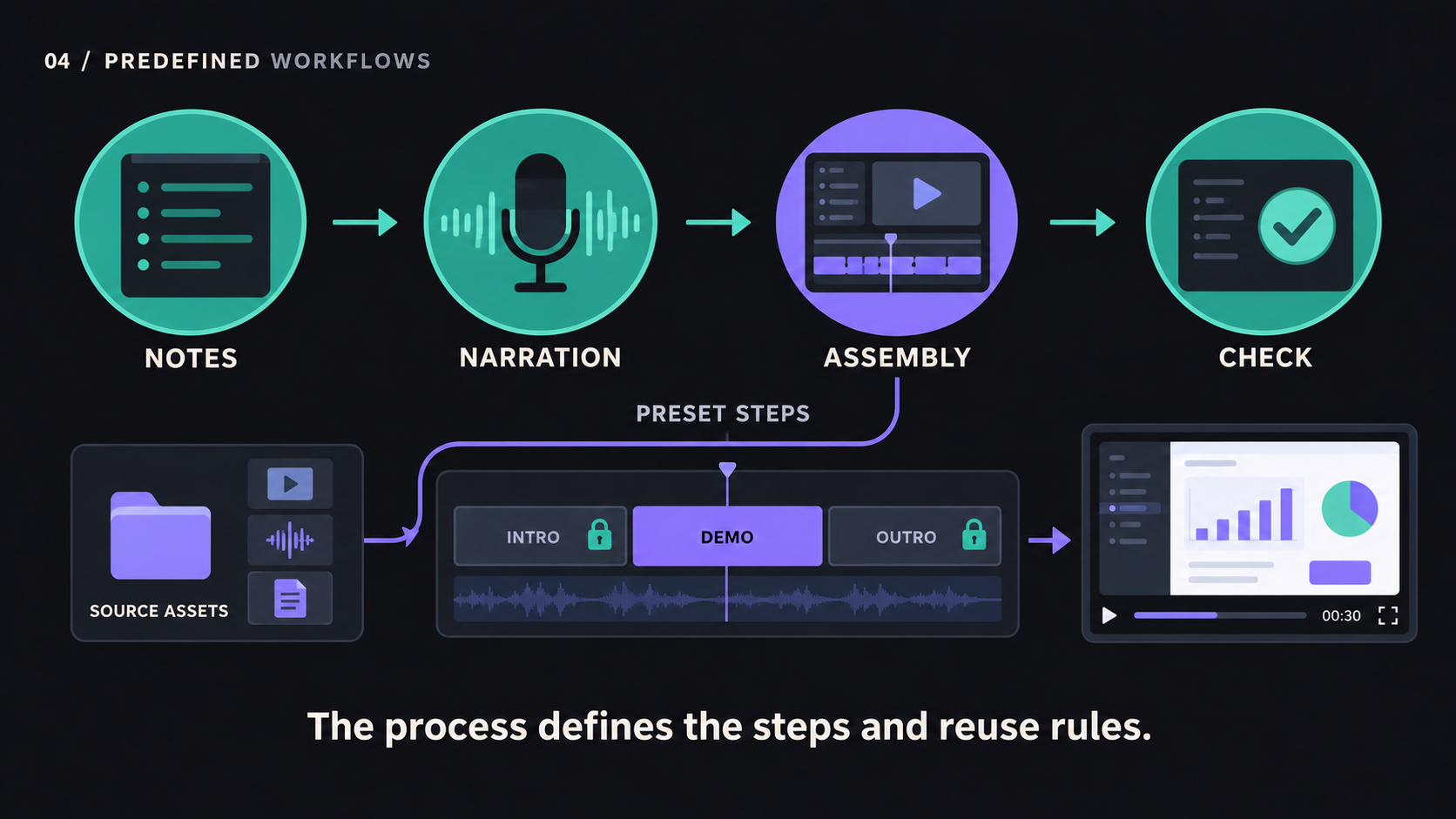
For the update, a workflow could accept the replacement recording and narration, rebuild the demonstration scene, and reuse the approved intro and outro. A fixed workflow does not inherently regenerate every scene. Whether it preserves completed work depends on how it was designed.
The distinction is who defines the production route. A workflow may ask a model to write a script or evaluate a frame while the surrounding program determines when those operations run and what follows. AI inside a process does not mean AI controls that process.
This pattern fits recurring videos with predictable inputs and structure. Its limitation appears when a request falls outside the process: a missing recording, an unexpected scene type, or a revision requiring a different sequence of tools. The workflow needs an appropriate branch, a person to intervene, or an agent allowed to plan the next actions.
Level 5: Agent-directed editing
An agent-directed workflow gives the system a goal and lets it choose editing actions. Instead of specifying every operation, the person explains the desired change, provides source material, and defines what must remain unchanged.

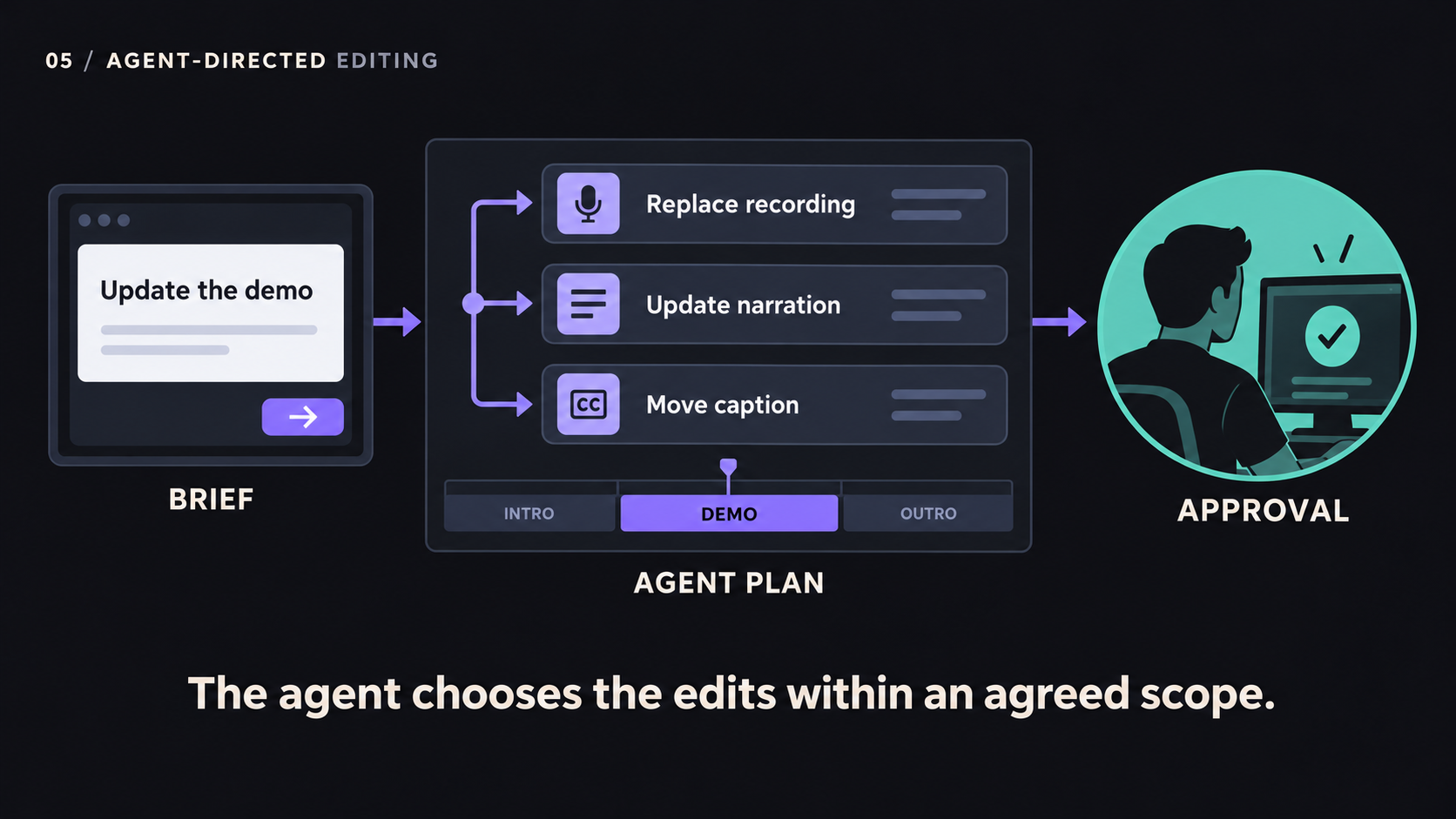
For the walkthrough, a possible plan is to replace the middle scene’s recording, update the spoken label, move the caption, and preserve the two approved scenes. The agent selects those actions from the request and the project it can access. A person can approve the plan before editing begins.
The approval checkpoint is a policy choice, not the defining capability. Another session might permit the same edits within an agreed scope and pause only before replacing an asset or publishing. Neither setting proves that the agent has checked the rendered result.
This distinction matters because a plausible plan can still produce a faulty video. The agent may edit the right text file while an old audio track remains on the timeline. At this level, examine the changes and the output rather than treating the agent’s completion message as verification.
Agent-directed editing is useful when the necessary steps depend on the request. It requires a clear brief, access to the relevant material, and limits on actions that should remain under human control.
Level 6: Agents that inspect and revise
At Level 6 in this framework, an agent uses observations of its work to choose a subsequent edit. It might inspect rendered frames, listen to the audio through suitable tools, compare captions with the script, or check the exported duration. The important evidence is that a finding changes what it does next.

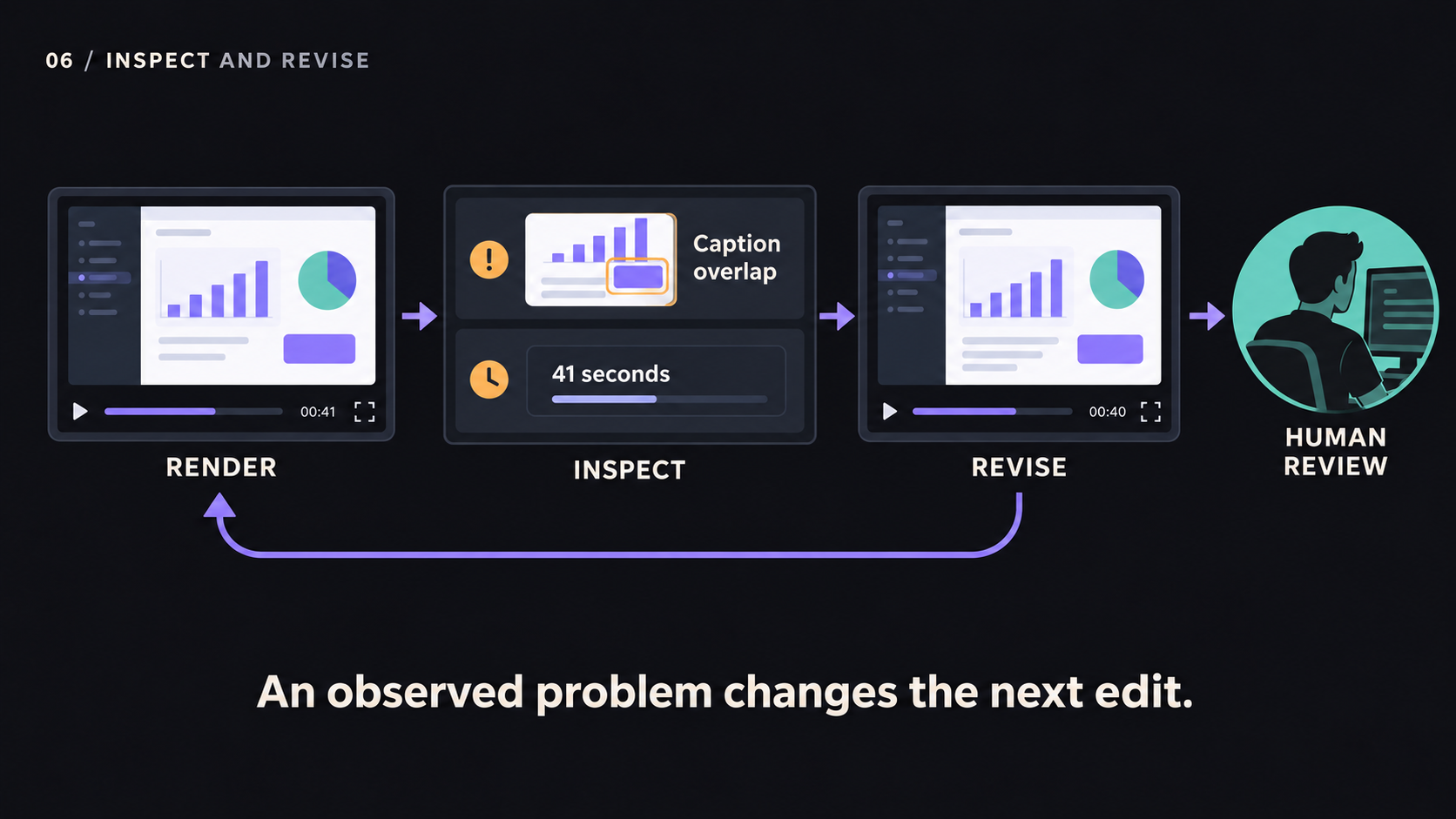
Suppose the hypothetical update produces a 41-second draft. The agent checks the duration, identifies a removable pause, shortens it, and renders again. It also examines the changed scene to confirm that the caption no longer covers the button. The duration check and the visual check answer different questions; passing one does not establish the other.
This resembles the within-task, outcome-adaptive control described in the agentic visual generation preprint. An automated check alone is not sufficient to demonstrate agentic decision-making: a fixed retry loop can also evaluate an output. Look for the agent’s choice of corrective action based on the finding.
Inspection has limits. Sampled frames can miss a brief visual error. A transcript can establish the words without establishing pronunciation or audio quality. The agent’s own report should identify what was checked, using which evidence, and what remains for a person to review.
Set an explicit stopping rule, such as a maximum of two revision attempts before asking for help. The goal is to meet the brief within an agreed budget, not to keep changing a video indefinitely. Human approval can still be required at selected checkpoints or before release.
Level 7: Agents that maintain a saved project
Level 7 applies the Level 6 process to later revisions of an existing video. The agent works from a retained project and new source material, changes the relevant parts, and checks the updated result. It does not need to reconstruct the previous video from a prompt.

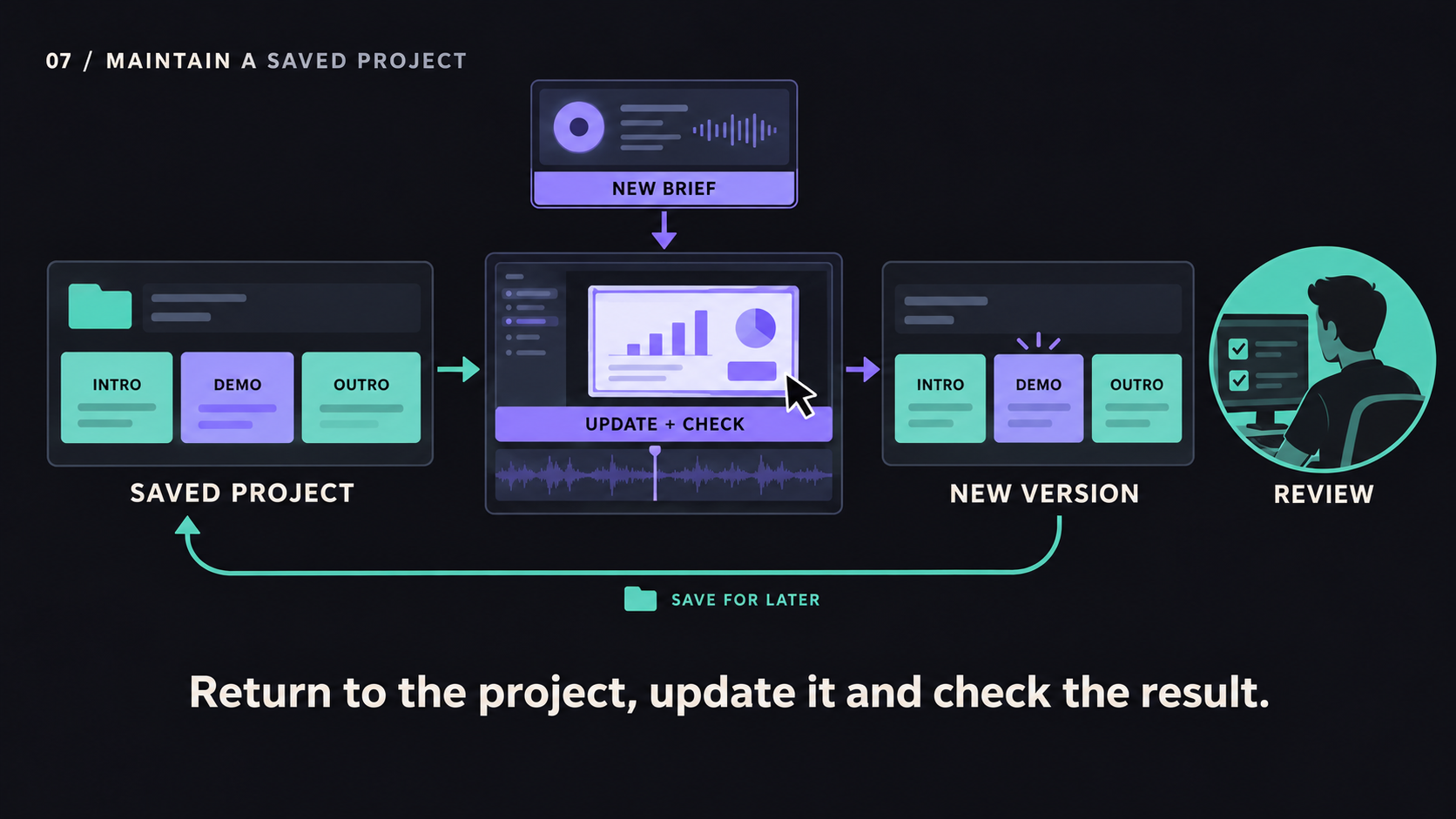
For the walkthrough, the retained project should make the approved scenes, narration, captions, and source recording identifiable. The agent receives the new recording and the renamed label, revises the demonstration, and checks the same acceptance criteria used for the original video. A person reviews the changed section and the surrounding transitions before release.
This adds maintenance to the workflow; it is not a higher form of intelligence. A Level 1 project can be equally durable, and a Level 6 agent can fail a later update if its media is missing. Plain files and version control are one way to preserve and review changes. A native editor project or a hosted workspace may also support maintenance if the required material and edit history remain accessible.
To make the process dependable, keep the source media, fonts, project settings, and a record of the software needed to render it. Save approved generated assets rather than assuming that another generation request will reproduce them. Where possible, test reopening and rendering the project in the environment another team member will use.
A text comparison can reveal a changed narration line or caption position. A replacement recording still needs visual review. Likewise, rendering the same saved project again does not guarantee an identical encoded file across software versions and machines, even when the intended scenes and timing are unchanged.
The evidence for Level 7 is a successful later revision with inspection and preserved project context. A folder in version control, an export command, or an unattended run is not enough by itself.
How to evaluate a workflow on your own video
Use one representative video before committing a larger production process. Supply the same source material and acceptance criteria to each workflow you are considering. Record the product version, connected model where applicable, approval settings, and date; these can affect the result.
A revision brief for the example could read:
Update the existing walkthrough using the attached recording. The button is now called Pin view, and the sidebar has moved. Change the demonstration, narration, and captions where necessary. Preserve the approved intro and outro. Keep the total duration at or below 40 seconds. Render a draft, check the changed scene and both transitions, and report any checks you could not complete. Stop after two revision attempts and return the result for approval. Do not publish it.
Evaluate the output with criteria you can observe:
| Check | Evidence to inspect |
|---|---|
| The interface is current | The changed scene matches the supplied recording and uses the new label |
| Speech and captions agree | Listening to the narration and reading the captions reveal no remaining old instruction |
| Approved material is preserved | Comparing the intro and outro with the approved version shows no unintended content or timing changes |
| The video meets the duration limit | The exported file is at or below 40 seconds |
| The agent checked its work | A recorded finding is connected to a corrective edit and a subsequent check, if correction was needed |
| The project remains editable | Reopening it gives access to the timeline and required media, and a small later change can be rendered |
If the first draft has no defects, there may be no correction to observe. That does not prove the system lacks a feedback loop. Ask for evidence of the checks performed, or use a separate test copy containing a known caption overlap. Never interpret a different execution path alone as proof of better reasoning.
Also record hands-on minutes, elapsed time, paid usage, intervention count, and any failures. One trial helps you assess fit; it does not establish a general reliability rate. Repeat the test with the kinds of material your team actually uses, including longer narration or an incomplete brief.
Where CoAnimator fits
CoAnimator provides a file-based environment for creating and editing videos with an agent. Its project documentation describes editable project files and packaged projects containing media and source files. That supports retaining work for later changes, but does not prove that a particular agent session will inspect or correctly update it.
The command-line documentation describes rendering a project to MP4 without opening an editor window. For example:
coa render launch-video.coa --out launch.mp4The same documentation describes export validation and success or failure exit codes. Those checks concern the rendered file; they do not establish that narration names the correct button or that a caption is readable. The agent and reviewer need to check the video’s content too.
Approval behavior depends on the connection. The agents documentation describes permission modes for CoAnimator’s own agent and separate session settings for native coding agents. Select the controls your task needs; fewer prompts are not evidence of a more capable workflow.
An agent that plans edits demonstrates the Level 5 pattern. If it inspects the render and uses findings to revise, it demonstrates Level 6. If it repeats that process on a later request using the retained project, it demonstrates Level 7. These are observations to establish in a session, not a permanent rating attached to the app.
There are practical limits. The CLI documentation for version 0.7.2 requires a configured rendering environment and does not provide hosted rendering workers. Running it on a Linux server without a desktop requires the additional display setup described in the docs. Local rendering also does not mean every input stays on the machine: the project documentation says AI requests and connected services can send selected inputs to their providers.
The quickstart explains how to connect an agent and create a project. Use it to prepare a small revision trial before depending on the workflow for recurring updates.
Choose the responsibility you need to delegate
For a short video that rarely changes, direct editing with a few AI-assisted tasks may be sufficient. For a recurring format with predictable inputs, a predefined workflow can provide useful consistency. Agent-directed editing becomes relevant when the next action depends on the request; inspection matters when one edit can introduce another problem.
If the same video must survive several product releases, evaluate maintenance explicitly. Check that the project can be reopened, the approved sections can be retained, and a later update can be reviewed without reconstructing the work. These requirements matter regardless of the tool’s agentic label.
The decision is not whether a tool claims a higher level. It is whether your team can delegate the intended work, verify the result, and make the next change with the project still intact.